Practical newsletter checklist: No more pre-send panic

Your newsletter is ready and the recipients have been imported, so there is nothing standing in the way of sending it. Or is there? Whether you are a newsletter beginner or an email marketing professional, just before that final click on the “Send campaign” button, we all suddenly wonder whether we have really remembered everything. To help you approach the process more calmly in the future, we have created the ultimate checklist for your newsletters. It lets you find any newsletter mistakes before sending and correct them quickly.
At the latest, when you send a test email to yourself and your colleagues before sending your newsletter, it is time to calmly work through our newsletter checklist step by step once more:
1. Check the newsletter sender and recipients
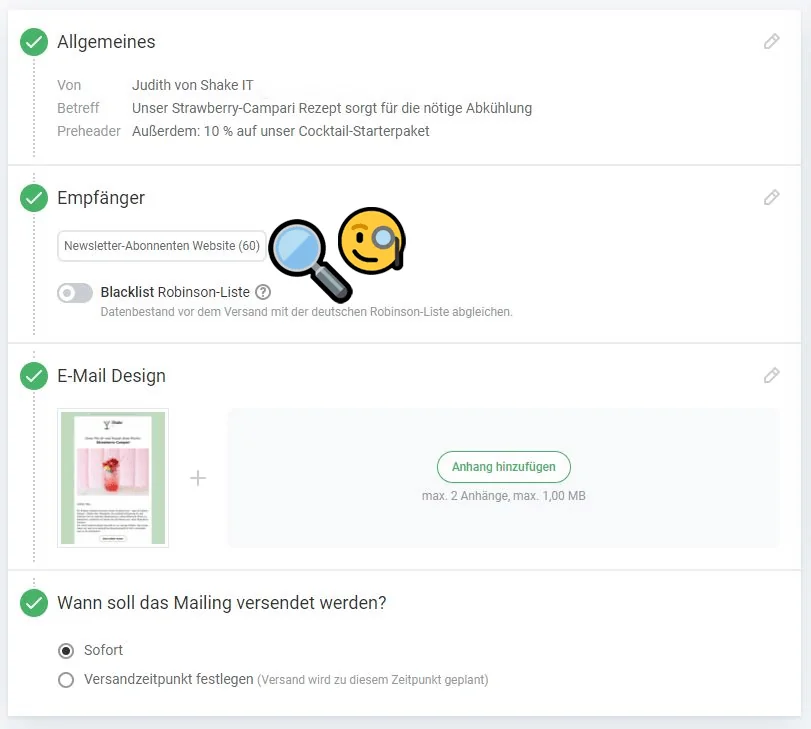
- Is the sender information correct? Although we advise against using free email provider addresses and noreply addresses as your newsletter sender, you have flexibility when choosing your sender profile. Before sending, check the following: Have you selected the correct sender address? Is the sender displayed correctly in the email inbox?
- Is the correct recipient list selected? Sending newsletter content to the wrong recipients can have serious consequences. For example, it can lead to an unusually high number of newsletter unsubscribes. It is therefore worth checking one extra time that you have selected the correct recipient list for the newsletter. Looking at the number of recipients can also often help you determine whether the right recipients have been selected.
2. Check the email subject line and preheader
- Have you chosen a suitable subject line? Especially if you have duplicated an old newsletter, remember to update the email subject line. Sum up the newsletter’s content in as short and punchy a sentence as possible. Not sure which subject line works better? Test two subject-line variations with an A/B test to find out which one resonates better with recipients.
- Have you added a preheader? The preheader is the newsletter preview line that is usually displayed below or next to the email subject line. For example, you can use the preheader for additional important information that would not fit in the subject line. A preheader that sparks curiosity increases your newsletter’s open rate. When reading the test email, check that a suitable preheader has been added and is displayed correctly.
The rapidmail newsletter
Tips, ideas and news about email marketing, straight to your inbox.
3. Check the newsletter content
- Is the newsletter clear to your recipients? As the sender, you know the newsletter’s content before creating it, so you know what it is about. When proofreading your newsletter test email, try to put yourself in your recipients’ shoes. Is the newsletter also clear to someone who is not yet very familiar with the subject?
- Have you checked the spelling and grammar? If your company makes lots of mistakes in its newsletter copy, this can quickly look unprofessional. You can use the spell checker in the rapidmail newsletter editor, for example. It also often helps to ask another colleague to read through the newsletter copy one final time. A fresh pair of eyes can uncover even the most well-hidden typos.
- Does it include all relevant information? What is it about? When is it happening? Who is it for? And where is it? Especially when promoting an event, it is important that your newsletter answers these key questions. Double-check that you have entered the event details correctly and that none of the numbers have been transposed.
- Are you sending the images inline or as referenced images? If you have only included a few small images in your newsletter, you can send the images embedded in the newsletter. With rapidmail, all you need to do is check a box in the image settings.
- Have you added the intended attachments? When you are in a hurry, it is easy to forget to attach the file to the email at the end. To prevent this happening with your newsletter, check the test email to make sure the newsletter includes the attachment and that you can open it.
- Is there a working unsubscribe link? Every newsletter must contain a working unsubscribe link. This is not only a legal requirement, it also prevents readers from marking the newsletter as spam if they no longer want to receive it. Use the test email to check that the unsubscribe link works too.
- Is there a legal notice? A legal notice is essential for a newsletter. It is a legal requirement for sending newsletters, demonstrates professionalism and therefore contributes directly to brand building.
💡 rapidtip
Add a “Ready to send” or “Newsletter review” column to your newsletter sending plan. Here you can note when you have worked through the newsletter checklist and approved the newsletter for sending.
4. Check all links included in the newsletter
- Do all buttons and links work? Send a test newsletter to yourself and click every call-to-action button, link, image and so on. Do all the links lead to the intended destination?
- Is the logo linked? A logo usually links to the homepage of a company website. Alternatively, you can link it to an email address that people can reply to. Logos are generally clicked by many readers, so test the link before sending to make sure it really works.
- Have you added the intended social media links to the newsletter? One goal of email marketing is to build a lasting connection between newsletter readers and a company. By linking your social media channels using the appropriate social icons in the newsletter, you encourage your subscribers to follow you on social media too.
5. Check the newsletter display
- Does the newsletter look right on mobile devices? View the preview of your newsletter on different devices. After sending a test email to yourself, you can also open the newsletter on your smartphone and check its appearance there. Still not completely satisfied? Take a look at our tips for mobile-friendly newsletters!
- Does the newsletter display correctly in different email clients? Different email providers (web.de, Outlook, Gmail and so on) sometimes display emails differently. The more email clients you test your newsletter in before sending, the better. All newsletters and newsletter templates sent with rapidmail are already optimized to adapt as well as possible to different displays, including on smartphones.
6. Check personalization
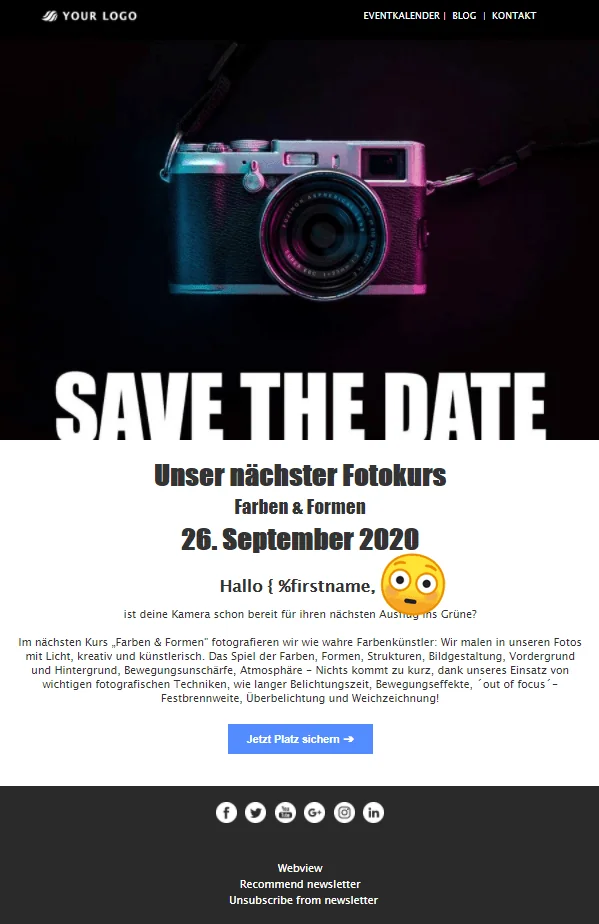
- Does the personalization work? Addressing readers directly in your newsletter, for example with a personal greeting using their first or last name, creates a sense of closeness and helps make your newsletters more successful. However, if an error slips into the personalization formula, it can be rather embarrassing. Test the personalization by sending a test newsletter: the email addresses you send the test email to must be included in the recipient list. You can also test personalization with recipient data in your newsletter preview.
7. Test newsletter tracking
- Have the tracking links been updated? To track how many conversions your newsletter has achieved, for example, you can add UTM parameters to the newsletter. You should update these in every newsletter so that you can distinguish between and compare different newsletters in your reporting. In the test newsletter sent to your own email address, check that the tracking links are up to date by clicking various links and looking at the URL.
- Are newsletter opens and clicks being counted in your tracking tool? If you use other analytics tools in addition to rapidmail’s automatic newsletter statistics, such as Mixpanel or Google Analytics, you should always test the tracking before the main send. Send a test newsletter to a few colleagues and ask them to click various links in it. Then check your tracking tool to see whether the opens or clicks are being counted correctly. It may take a little while for the data to reach your analytics tool, though, so there is no need to panic straight away! ?
Could you check off every item on the newsletter checklist? Great! Before you send the final newsletter, make sure you send another test email to someone else. For example, ask your colleagues to look over the test newsletter before you send it. Two pairs of eyes are always better than one!
8. Interactive newsletter checklist to download: ready to send or not (yet)?

👀 Did you know? Our newsletter checklist is also available as an interactive PDF document to download!
Simply save the checklist on your computer and check off the items you have already checked. This way, you are guaranteed to have everything in view before every send and can easily make sure you really are ready to send, or find out that you are not quite there yet. ✅
We hope you enjoy working through the checklist and wish you every success with your newsletter sends!