Sending test emails: what to check before sending your newsletter
 Lea·

Transposed letters, incorrect links and images that do not display: all these issues are likely to jump out at newsletter recipients, yet can easily escape you as the sender even after several checks. Before sending a potentially faulty newsletter to numerous recipients, you should therefore consider sending a test email.
1. Test emails in email marketing: what are they and how do they help?
Sending test emails simulates the actual email send. In email marketing, this primarily means thoroughly checking various functions and features before the real send. These include the readability of the copy, how images and graphics appear, links and the format in which your newsletter is displayed on different devices.
What is the purpose of test emails before sending a newsletter?
They give you an opportunity to eliminate newsletter errors before the main send and therefore provide customers with the best possible result. You send the test email to a selected group of recipients, such as employees or selected external people who can take a fresh look at the content.
💡 rapidtip
Create a checklist before sending your newsletter and work through it step by step so that the final product reaches recipients in the best possible form. This helps you monitor your progress and always know what remains to be done.
2. Why testing emails pays off
A newsletter test send lets you check everything that matters. We have put together an overview.
- Sender, subject and preheader: what first impression does the email create? First things first: the small preview in the inbox is the first thing recipients see. During the test send, check that it contains the correct information and displays it in full, that you entered an appealing sender name and that the subject line sparks interest. An original newsletter name can turn your campaigns into a brand, provided they reach recipients correctly.
- Content check: is my content complete and correct? When checking the content, it makes sense not to review it several times only as its author. After all, you know what you intended to say in your newsletter. Always use the four-eyes principle and ask another, preferably uninvolved, person to read it. This provides a fresh, unbiased view of the content and checks whether the copy is clear.
- Writing style and grammar: does my copy make sense and read well? Ask a colleague or acquaintance to read it, for example. This makes potential grammar or spelling mistakes easier to find. A strong, consistent writing style throughout your newsletters that matches the content and values presented on your website creates a professional impression and can improve the customer experience.
- Overall appearance: do my images display and is the formatting effective? A test email lets you check whether the newsletter display, image-to-text ratio and images work well on different devices.
👀 Did you know?
Your subscribers’ different email providers display newsletters differently when they arrive in the inbox. A test email lets you account for this too, for example by sending the campaign to several test accounts. This helps ensure that the newsletter arrives as intended regardless of provider. If you want to save some time, you can also use our display test.
- Hyperlinks: are my links clickable? Your newsletter is likely to contain links that direct readers to your website, online shop or further information. A test email lets you check that they work. Can the links be clicked at all, and do they lead to the right destination? As links add an interactive function to the newsletter, ask an external person who is not very familiar with its structure and functionality to test them if possible.
- Check newsletter tracking: do all my links work and lead to the right place? After sending the newsletter, you will certainly want to analyze the figures and data to measure its success and identify potential improvements. If you use tracking tools in addition to rapidmail’s automatic delivery statistics, check that the tracking links are current before sending. This prevents later problems with data analysis.
3. Recipient list: who should receive test emails?
You now have several points to guide your test send. But who should receive it?
Send the email to yourself. As the sender, you can directly check the points above and see your draft for yourself.
Besides yourself, include colleagues or managers who can check the factual content and suggest immediate improvements. As the saying goes, teamwork makes the dream work! They may use computers with different operating systems, allowing you to see how the newsletter looks on different systems in practice. You will also have the same preliminary result in front of you that recipients will later receive.
A fresh look at the newsletter
You should nevertheless also consider sending the newsletter to selected people you trust. These are not actual subscribers from your recipient list, but people able to take a more detached view. Is the content clear to a layperson? Is the newsletter, including its links, intuitive? People unfamiliar with the subject can probably answer questions like these better than you can.
💡 rapidtip
If required, you can set up a separate list for test emails, giving you an overview of everyone who should receive the test email. The rapidmail newsletter tool also has a clever option to select the test send directly in the editor. As it is only a test function, the email is not sent from your email address. This ensures that the test email lands in your inbox rather than the spam folder. The test send saves time, and you do not need to duplicate the campaign afterwards to send it to the real recipient list, your subscribers.
4. A/B test vs email preview vs test email: which test is right for me?
Besides a test send, you have other ways to test your newsletter before distributing it widely.
| A/B test | Email preview | Test emails |
|---|---|---|
| In an A/B test, two campaigns that differ in an element such as the subject or sender profile are sent to two small recipient groups. You can then use their open and click rates to assess which campaign performed better and send it to your full recipient group. For example, you can test whether to personalize the subject line or include emojis, which sender works best or which sending time will encourage the most recipients to open the newsletter. | The responsive preview lets you check before sending how your newsletter appears in different formats on different devices. rapidmail shows smartphone, tablet and laptop views in portrait and landscape. As newsletter display can vary greatly between devices, this function is very useful. It ensures that the formatting and layout look attractive not only on a laptop, but also on a smartphone. | The test email is not sent to the actual recipient list. Instead, it allows colleagues or external people to review the campaign's content. You can prevent errors and check newsletter functionality before it reaches a wide audience. A newsletter test send only simulates the subsequent real send. At this stage, you are not yet contacting recipients, so you can thoroughly check the content and ensure that subscribers receive an error-free final version. |
rapidmail provides all three options for testing your newsletter. We recommend using all three to stay on the safe side and present a professional image to your target audience.
The rapidmail newsletter
Tips, ideas and news about email marketing, straight to your inbox.
5. Sending test emails with rapidmail: how it works
rapidmail lets you test your newsletter send free of charge! You can send the test to up to 10 people, who can then provide feedback.
Start as usual: choose all the important settings, select your final recipient list and come up with a creative subject, an appealing sender and a curiosity-inspiring preheader.
Then create your newsletter with one of our colorful templates or, if you prefer, a design of your own.
Once in the newsletter editor, you will find the test-send option at the top of the page.
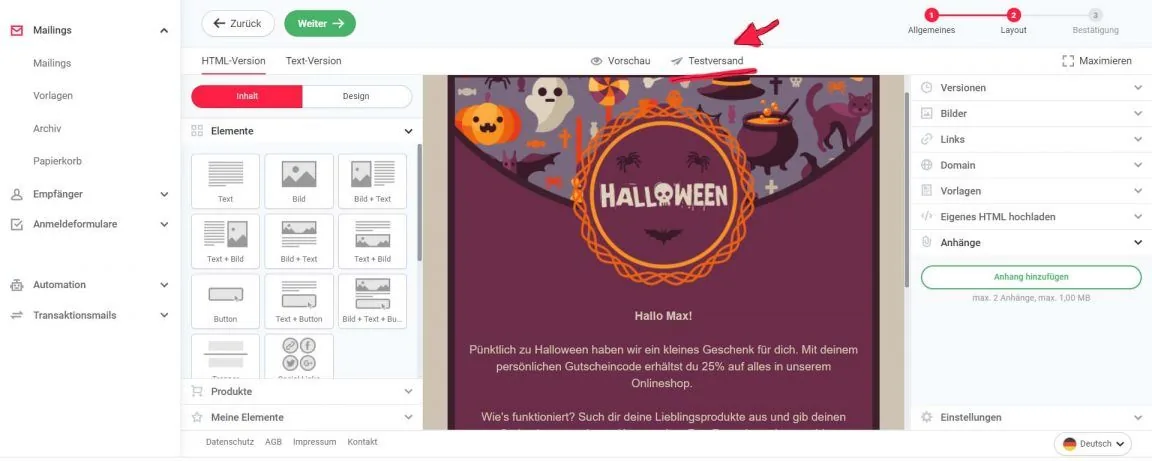
You can click it once you have finished the newsletter, including the photos and hyperlinks you want to use.
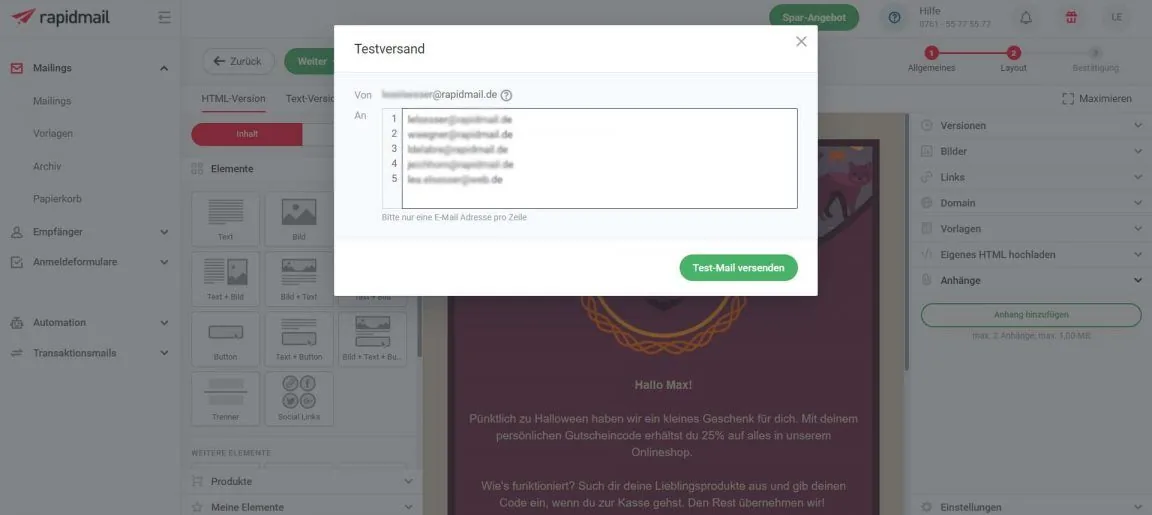
Enter the email addresses of the people who should test your newsletter in the field. You can inform the test email recipients in advance and ask them to check its content, language and functionality. Please note: a test email can only be sent to up to 10 people at once.
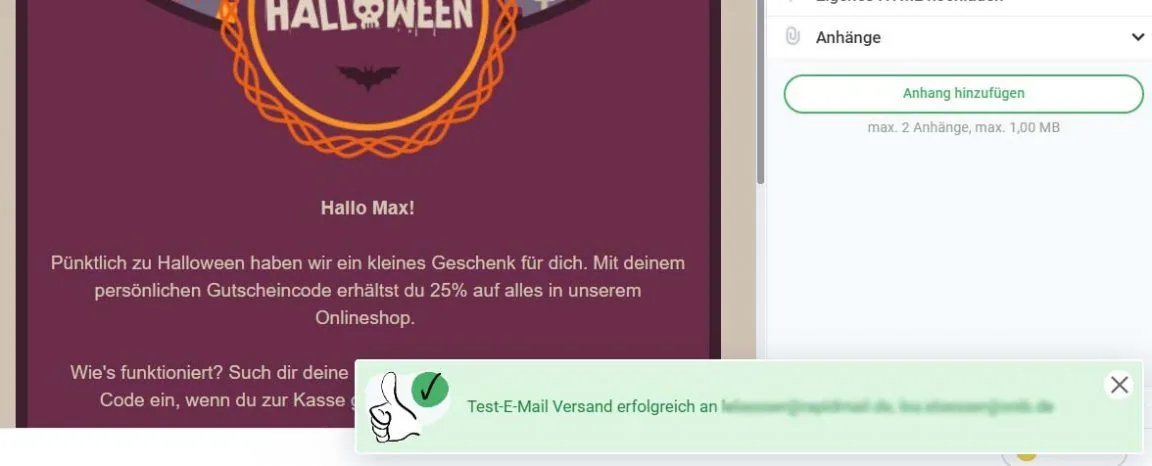
If everything works, a green box will appear at the bottom of the page confirming that the test email has been sent.
Wait for the feedback, then optimize your newsletter. Nothing will stand in the way of a successful send.
See for yourself!