Create a newsletter template in your own brand design: Here’s how!
Would you like to create a custom email template with a layout and design that matches your website or online shop? Our step-by-step guide shows you how to design your own responsive email template that reflects your brand design, looks great on every device and makes your email marketing even more successful!
⚠️ Spoiler alert: With rapidmail’s 1-click design, creating your own newsletter templates is now easier than ever!
1. What is an email template in your brand design and what are its benefits?
A well-considered and attractive newsletter design is one of the main ingredients of a good email. It sparks your readers’ interest in the email content while encouraging them to give your newsletter their full attention. After all, we all like to make time for things that look beautiful or immediately capture our imagination.
An appealing design is therefore one of the most important requirements for successful newsletters and helps you achieve the desired conversions. Your newsletters should not only look stunning, but also be designed so that your recipients immediately associate the email with your company as soon as they open it.
You can achieve this by tailoring your newsletter template entirely to your brand presence. In other words, create an email that matches your corporate identity (CI for short) and whose layout and design follow all the same design guidelines that your company uses for its website or online shop.
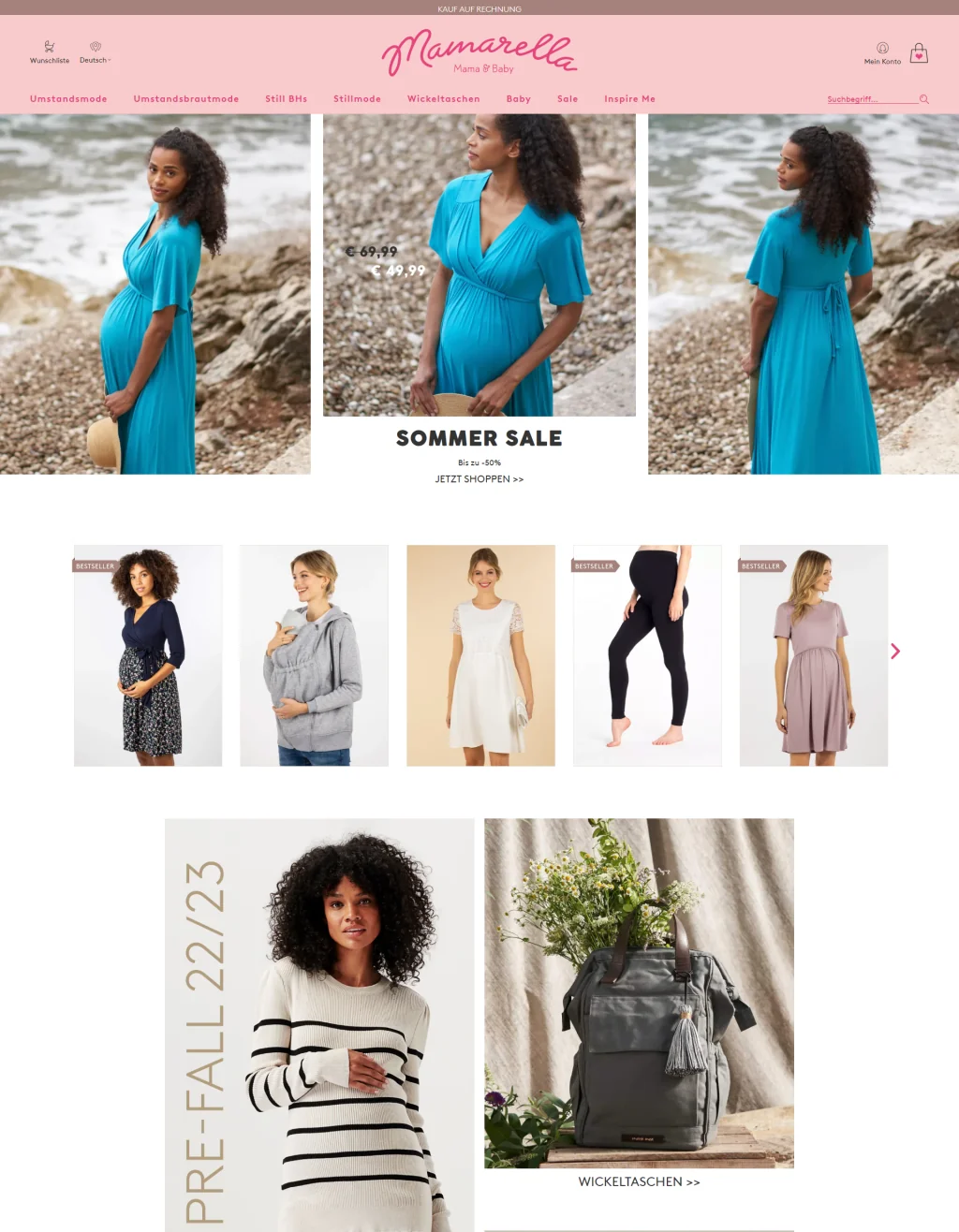
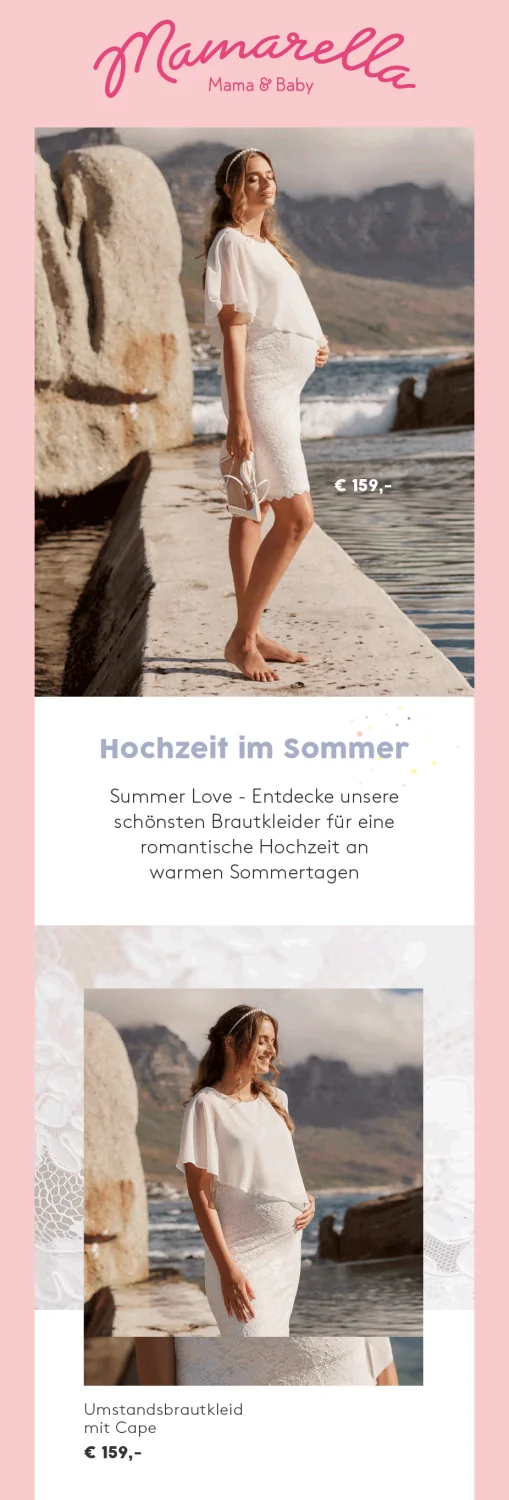
Our top tips for an email template in your brand design:
- 🎯 A prominent logo: Your company logo should be clearly visible in the email header of your newsletter, so it catches your subscribers’ eye as soon as they open the email. If you have several versions of your logo (for example, with and without the company name), use the same logo in your newsletters that visitors see on your website’s homepage.
- 🎨 Consistent colors: The color scheme used in your email template, for example for call-to-action buttons, headings or the newsletter background, should match your website. A brand design color scheme usually comprises up to five different colors that are used across all communication materials, including your newsletter.
- 🖼️ Images that match your website design: Whether your website features hand-drawn illustrations, original photography or purchased stock photos, you should use the same type of imagery in your newsletters, particularly for the header image.
- 🔷 Graphic elements in the style of your website: Check whether your website uses round or angular elements, such as icons, whether they are hand-drawn or purchased online, and whether they use one or several colors. The shape of call-to-action buttons (square or rounded) should also be consistent across all online communication channels.
👀 Should you use the same font in your newsletter as on your website?
If possible, yes. In email marketing, however, using the same fonts as on your website is not always that simple. There is a good reason for this: some fonts are not supported by your contacts’ email clients. In such cases, you can use “email-safe fonts”, standard fonts that are already installed on devices and can therefore be displayed without any problems. You can use these for your newsletters at any time. rapidmail also gives you access to 40 different web fonts to make every email look even better. ✨
If your company font is not available among the standard fonts and web fonts, simply choose the font you like best that most closely resembles the one in your brand design.
Designing your email template to visually match your other communication materials, such as your website, flyers or posters, offers numerous benefits:
- 👀 Brand recognition and branding: A consistent email design increases recognition of your brand and newsletter. It also helps your subscribers immediately recognize who sent the newsletter and what content they can expect. The benefit for you is that this strengthens your brand and makes your company or brand better known in other contexts too. If you use an appealing email template in your brand design for all your newsletters, your subscribers are more likely to recognize your company logo or graphic style on products on a shop shelf, for example, and transfer their positive impression of the newsletter to your products. Online branding activities like these are becoming increasingly important, especially in today’s digital world!
- 📢 Conveying company culture: The design of your company’s newsletter template says a lot about its culture. Depending on whether you choose a classic design that puts the text center stage or focus more on unusual graphic elements and bright colors, your subscribers will associate different values with your company. Your newsletter design can therefore help you capture the attention of the right target audience and bring them to your website or shop via your newsletter. For example, a simple newsletter design featuring spectacular landscape photographs or icons with plant or animal motifs, combined with a color palette of white and green shades, emphasizes a connection to nature as a core value of your company.
- 🌟 Market expertise: A professional email template in your brand design also helps establish your expert status among your readers, making it easier to stand out from competitors. The extent to which the appearance of communication materials influences how prospective customers assess a company’s expertise is often underestimated. By using a template that suits your company and target audience, you are guaranteed to be one step ahead of many of your competitors!
Need a little inspiration for your next newsletter? We have just the thing for you!
33 inspiring real-life newsletter examples
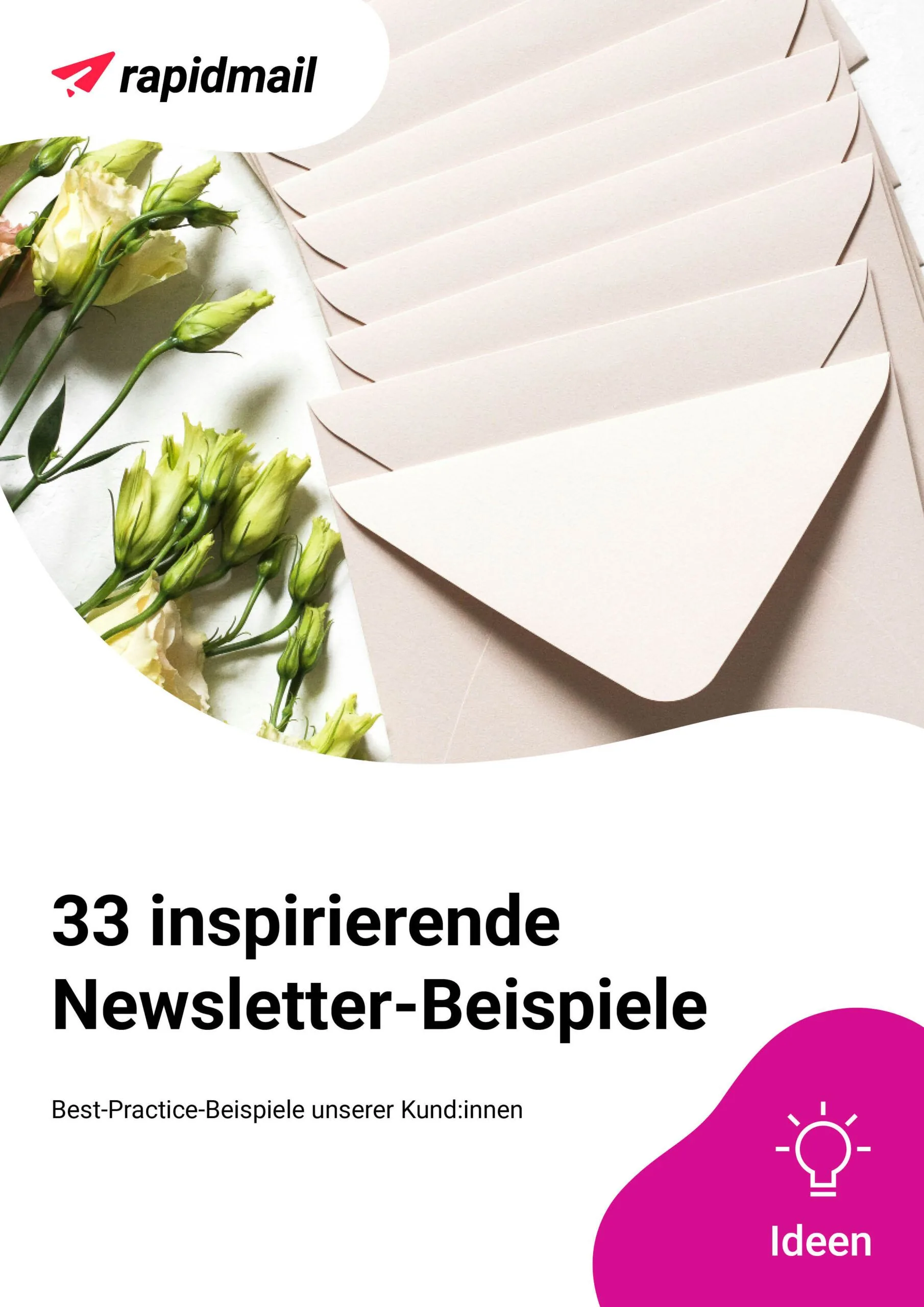
- A wide selection of newsletter examples and best practices from our customers
- 33 newsletters for many different occasions and from a wide range of companies
- Give your creativity a fresh boost 💫
Curious? Download the successful newsletter examples free of charge now. Have fun exploring them!
Download inspiring newsletter examples for free now (PDF in German)
2. How can you create and design your own newsletter template?
rapidmail gives you four different ways to create an email template in your brand design. Whether you are just starting out as a newsletter beginner, already have advanced experience or are a true design professional, rapidmail offers the right email template design option for everyone. But we can already let you in on one thing: option 1 is our clear favorite. 🤫
Option 1 – The all-rounder for everyone: Quickly and easily create email templates in your brand design with 1-click design
The name says it all: with 1-click design, you only need to click once to create a design for your emails that fits seamlessly into your company communications.
It couldn’t be easier: Enter your website URL and click the “Next” button. 1-click design then works its magic, creating custom templates in your brand design, complete with your company colors, fonts, logos and even social links. You can, of course, make additional design adjustments if you wish, such as changing the rounded corners of the call-to-action button, choosing an alternative logo or varying the colors. Once you are happy with the design, save it and voilà: as if by magic, a wide range of email templates in your own brand design will be ready to use.
This means that 1-click design offers you a whole host of benefits:
- ✅ Save work and spare yourself the stress: 1-click design makes it effortless to create your design template
- ⏱️ Save time when creating your newsletter template in your brand design and on future emails
- 🔗 Stay connected thanks to automatically integrated social links
- 💪 Easy to use for everyone: create and design email templates in your brand design without any design or coding skills
- 🎨 A wide range of design options
Option 2 – For beginners: Customize a ready-made email template to match your brand design
Step 1: Choose a ready-made email design template
rapidmail’s email marketing tool gives you access to 12 free newsletter templates. Simply choose a template with the layout and theme you like best (such as ecommerce, events or fashion) and adapt it to your brand design.
For inspiration, take a look at the newsletter templates most frequently used by our customers. You might find the perfect one for you.
With 12 modern newsletter templates, simply select the layout you like best and use it as the basis for your company’s own newsletter template.
Let’s assume you run an online shop selling hiking equipment and want to create a newsletter template that can be reused for a weekly email featuring product offers. You might choose the ready-made “Outdoor Adventure” email template.
Step 2: Define the default sender profile and template name
Found a suitable newsletter template? Then let’s get started!
First, set a default sender profile and a newsletter subject line, in this case the name of your email template. Naturally, you can adapt both to suit each email before sending it. This makes it easy to find your finished email template in your central folder containing all your templates.
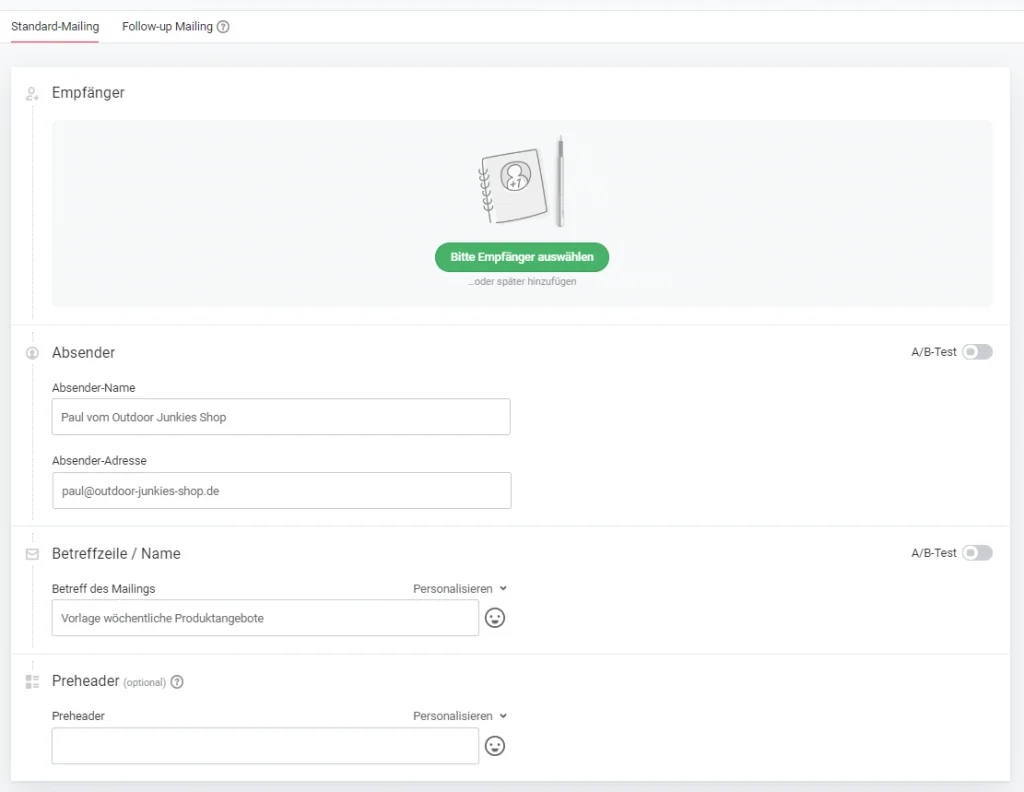
Step 3: Turn the template into your own email template
Once you have selected your sender address and template name, you will enter the newsletter editor. Now it’s time to get creative! 🎨
Let’s return to our example of the outdoor online shop. The next step is to adapt the chosen email template so that all its elements, including the layout, shapes, colors, fonts, icons and call-to-action buttons, match your outdoor shop as closely as possible. Think of green and brown tones, soft shapes and understated fonts, for example.
👀 Did you know?
Benefit from rapidmail’s easy-to-use editor and design your newsletter effortlessly using the drag-and-drop editor. All versions of your email are also saved automatically and can be retrieved later. That means you can relax and take a coffee break while creating your email. ☕
Here is how to turn your chosen template into your own email template with the right design, step by step:
- ➕ Replace the example logo with the correct company logo and add links to your company website or online shop (the link remains the same in every newsletter).
- 🖌️ Use the layout elements in the left-hand sidebar to customize the template as you wish.
- 🛑 Add all the graphic elements that should appear in the same position in every newsletter, such as icons, arrows, contact people and product photos.
- 🖼️ Add an example header image and configure all the desired settings, such as image width, alignment, spacing, borders and embedding in the email.
- 📝 Add text placeholders (title, subtitle, description, product names, prices and so on) in the desired positions and define the settings for each one, such as font, font size, alignment and color.
- 📢 Adapt the design of the main call-to-action button: its color, corner radius, border, font size and so on.
- 🎨 Choose a background color: In the left-hand sidebar, you can select any background color for the newsletter under “Customize design”.
- 🔗 Adapt the selection, design and links of your social links: Various platforms, designs and colors are available for social media icons in newsletters.
- 👋 Adapt the wording of the unsubscribe link: An unsubscribe link is one of the legal requirements for sending newsletters. With rapidmail, this link always works automatically, so you do not need to add another link to your newsletter template.
- 🌐 Adapt the wording for the browser view: The link to the newsletter’s web version also works automatically with rapidmail as your newsletter tool. It is not compulsory, but it is useful because it allows subscribers to read the newsletter online if they experience display problems, for example. Each company can decide whether to use link text such as “Browser view”, “Web version” or “View newsletter online”.
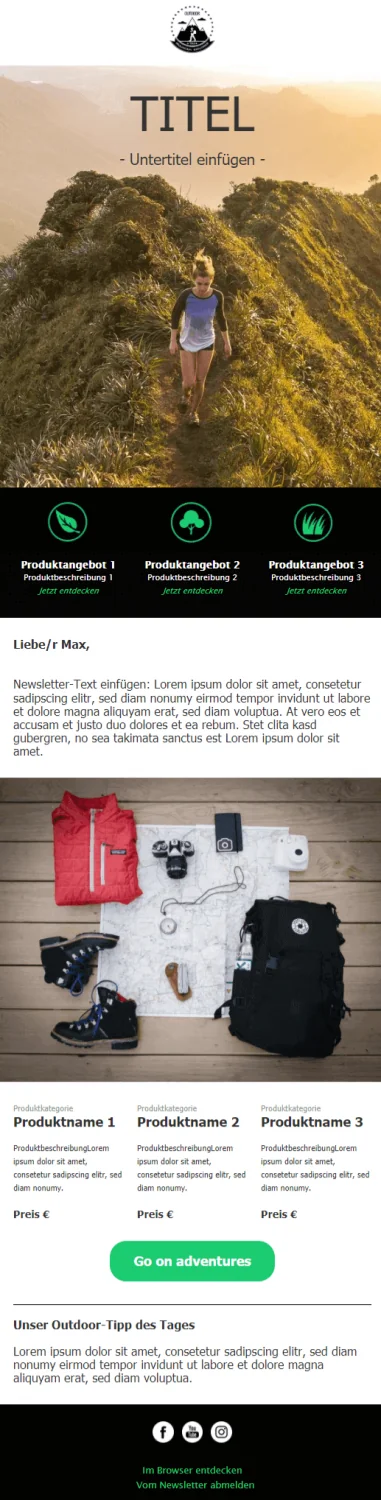
Choose a template and design your own now
Option 3 – For advanced users: Design your own email template from scratch in the email editor
If you really want to give your creativity free rein when designing your newsletter template, rapidmail also lets you start with a blank newsletter editor. Here you can build and design your email template yourself, step by step.
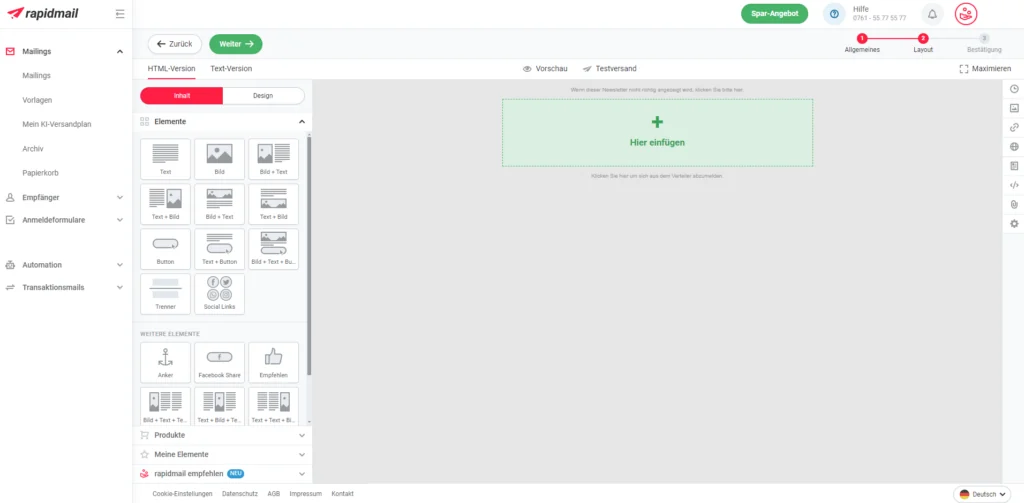
Before you start building your newsletter, the “Customize design” section in the rapidmail editor’s left-hand sidebar allows you to define design settings that apply across the entire newsletter. For example, you can adjust the default newsletter width of 580 pixels, choose the background and content colors for your template, set the font, font size (we recommend at least 14 pixels for good readability) and line spacing, or design your call-to-action buttons.
If you later want to give individual blocks within your email template a different design, such as a different font, simply change the settings in the relevant layout element.
When designing your own template, the easiest approach is to work through the newsletter piece by piece from top to bottom, using the available layout elements in the left-hand sidebar to create your custom newsletter template. This strategy prevents you from accidentally forgetting any important email elements at the end.
💡 rapidtip: Back to basics
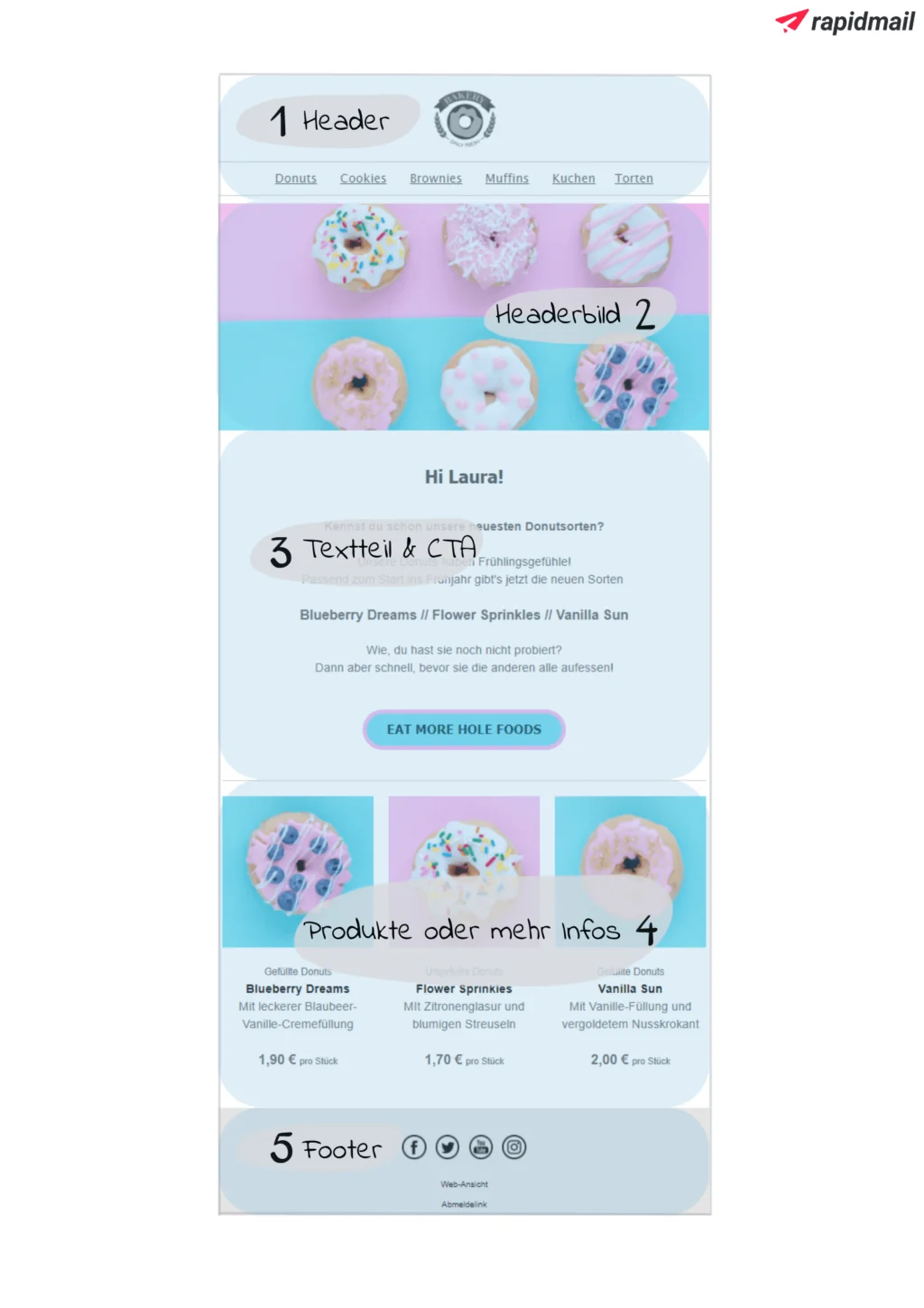
You probably already have a rough idea of the building blocks of a successful newsletter. As a quick reminder, we have brought together all the elements that are essential for your email template in your brand design:
- ✳️ Use the image element to add your company logo to the header: It should immediately show who sent the newsletter and ideally link to your website or online shop when clicked.
- 🛒 Optional: Create a line of text in the newsletter header, featuring your most popular product categories, for example. It is also worth adding simple links to your website behind the categories or topics so that interested recipients can go straight to the content they want.
- 🖼️ Add an example header image below it that you can use as a guide later, and configure all the desired settings, such as image width, alignment, spacing and borders.
- 🗨️ Create placeholder text and define the approximate length of the copy section. You can also build your preferred personalized salutation into your newsletter template at this stage.
- 📢 Use the sidebar to add the “Button” element and adapt the content of your call-to-action button so that readers understand they will be taken to your website or online shop when they click it.
- 🛍️ Below this, you can add more placeholder headings and text, such as “Product name 1”, “Product description 1”, “Price €” or “Subtopic 1”. However, use no more than three columns in your email template so that your newsletter remains readable for smartphone users.
- 🦶🏼 The “Footer” layout element, including the unsubscribe link and web-version link, is always included automatically with rapidmail. You can, of course, adapt the wording of the unsubscribe link and the rest of the footer exactly as you wish, for example by adding social media icons or an email signature.
Option 4 – For professionals: Create your own HTML email template
Are you a coding professional and HTML designer who wants to use a custom-built HTML email template? rapidmail’s expert mode lets you do that too: you can upload and edit your code as a .zip, .gz or .z file. However, you really need to know your way around this area. For beginners, it is virtually impossible to build their own HTML newsletter template with code that includes all the required elements and also looks good on every device.
If you use your own HTML code for your email template in rapidmail, we unfortunately cannot guarantee that your newsletters will display correctly. Before proceeding, carefully consider whether you are genuinely confident in your skills or would prefer one of the three other approaches we have presented for creating your own email layout.
If HTML code is your great passion and you still want to use our expert mode, we have also compiled some valuable tips for designing HTML emails for you. These recommendations and tips not only ensure that your newsletters are easy to read, but also help improve the deliverability of your emails.
3. How can you save and use the email template you have created?
Once you have worked your design magic with 1-click design (option 1), a wide range of email templates with different layouts will automatically be available in your customer account. Some ready-made templates for specific occasions, such as birthdays or Black Friday, even apply your brand design settings automatically! But do not worry: if you ever want to start a new email from a blank template, you can simply deactivate 1-click design again. 🤓
By the way: Regardless of whether you create your branded template using option 1, 2 or 3, you can always add content that stays the same in every email (such as your legal notice, email signature, header and so on) and save the finished email as your own template in the appropriate folder. You can then simply open it, insert the latest content and send it! Because you have already configured all the design and layout settings in your template, you only need to add the desired images, text and links before your newsletter can make its way to your recipients. 🚀
The rapidmail newsletter
Tips, ideas and news about email marketing, straight to your inbox.
By the way: Regardless of which of the first three options you use to create your branded template, you can always add content that stays the same in every email (such as your legal notice, email signature, header and so on) and save this prepared email as your own template in the templates folder. This saves you even more time when sending your newsletter, as you only need to add the content intended specifically for that email. Clever, isn’t it?
If you use HTML emails in expert mode (option 4), simply duplicate the email template you have created in the overview and adapt it as you wish for your next send.
👀 Did you know?
All emails you create with rapidmail are automatically responsive, which means they are optimized for mobile devices and look good on smartphone screens too! So whether you use 1-click design templates, our ready-made newsletter templates or emails you have created yourself from scratch, you do not need to worry about whether your design will reach your contacts exactly as intended. To make your emails easier for subscribers to read on a small smartphone screen, you should still follow our clever tips for mobile-friendly newsletters when building your template. At the same time, this takes you a big step toward accessibility in your newsletters.
4. Conclusion: Why it is worth creating an email template in your brand design
You now have all the essential information you need to create a newsletter template in your brand design. The work you put in is particularly worthwhile if you regularly send newsletters of the same type (such as weekly product offers) or send them on similar topics. ✔️
With a professional email template that you have designed yourself, you can:
- 🕒 Save a great deal of time on all the emails you send in the future
- 💡 Present yourself to subscribers as a reputable and professional company
- 🌟 Increase recognition of your newsletters and therefore your brand
- 🚨 Stand out from numerous competitors
- 🖌️ Enable several team members to create newsletters while following the same design guidelines
- 👀 Ensure that you never forget important email elements, such as the call-to-action button or an unsubscribe link