Newsletter tracking with Google Analytics 4: How to track conversions

Tracking plays an important role in newsletter marketing. After all, you want to know whether your efforts are paying off and whether your newsletters are generating conversions, in other words, achieving the goals you set in advance. Depending on your company, target audience and planned projects, these goals can vary considerably. Examples include purchasing a product in your online shop, new registrations on your website, signing up for an event or downloading an e-book. To measure the targets you have achieved, you first need to set up your newsletter tracking in Google Analytics 4. Don’t worry, we’ll show you how to do it step by step!
1. Newsletter conversions and the conversion rate: what are they exactly?
Depending on your industry and company, your newsletter can do more than simply inform subscribers about important news. If you have already given some thought to your newsletter strategy, you will ideally have defined the goals you want to achieve.
When you send newsletters that do more than simply provide information, you generally want your contacts to respond in a particular way. For example, you may want to gain more registrations on your website by promoting a free trial month in your newsletter and using a call-to-action button that links to the registration page. Or you might showcase your new summer collection and hope that lots of subscribers click on an item of clothing and then buy it directly from your online shop. Encouraging people to download templates, e-books or guides, or to book a table at your restaurant, can also be reasons for sending your newsletter.
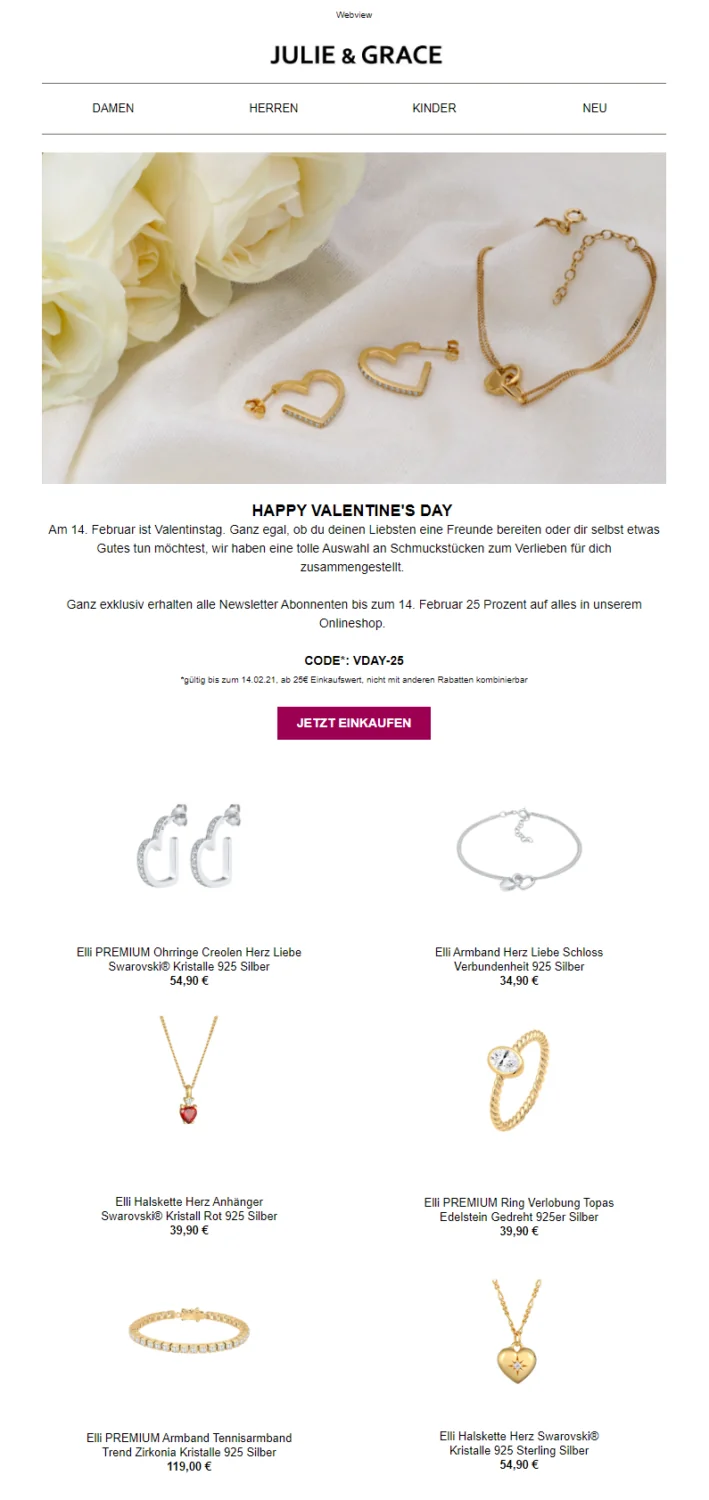
If you succeed in putting your plan into action as a sender, for example when a contact clicks the link in the newsletter and orders a T-shirt from your online shop, this is known as a “conversion” in email marketing. In other words, you have achieved your goal: your subscriber responded exactly as you hoped they would before you sent the newsletter. High open rates and click rates are therefore more like milestones on the way to your newsletter’s main goal: generating as many conversions as possible!
Newsletter conversions can be measured using the conversion rate, which indicates the percentage of contacts who took the desired action, measured against the total number of contacts who clicked a link in the newsletter.
To calculate the conversion rate for a newsletter you have sent, you therefore need the number of contacts who clicked a link and the number of conversions, meaning the follow-up actions completed successfully, such as registrations, purchases or downloads:
Conversion rate = (number of conversions / number of contacts who clicked) * 100
For example, if 400 subscribers clicked a link in the newsletter and 10 of them then completed the desired action on the website, such as purchasing the product, the newsletter’s conversion rate would be:
Conversion rate = (10 / 400) * 100 = 2.5%
Viewed on its own, the conversion rate for a single newsletter tells you very little. Instead, it helps you compare different newsletters over an extended period and determine, for example, which topics, products or events resonate best with your target audience.
The rapidmail newsletter
Tips, ideas and news about email marketing, straight to your inbox.
2. Tracking newsletter conversions: why it’s worthwhile
If you send your emails using a dedicated newsletter tool such as rapidmail, the newsletter statistics are displayed automatically after sending. These include key figures such as opens, clicks and the types of devices used. However, a newsletter’s success often also depends on how many conversions it has generated.
Dedicated email marketing software such as rapidmail can only analyze contacts’ responses within the newsletter itself. This means that the newsletter reports in your rapidmail account can only provide information about “internal” responses, such as the number of newsletter opens, the number of clicks, measured through link tracking, or the click map showing how often each link in the newsletter was clicked.
💡 rapidtip
To collect and analyze contact activity using link tracking, you must obtain your contacts’ consent. But don’t worry: it’s not as complicated as you might initially think. You simply need to describe in your terms and conditions which contact data you collect and for which purposes. By accepting the terms and conditions when signing up for the newsletter, your subscribers consent to link tracking.
Unfortunately, your email marketing software cannot track or count any responses that take place outside the newsletter. This means the tool cannot tell you whether contacts who clicked links in the newsletter later actually downloaded the e-book from your website or bought the item from your online shop. You therefore have no readily available figures for your newsletter’s conversion rate.
Make measurable statements about newsletter success
To track these “external” newsletter responses on your website or in your online shop, you need a website tracking tool, such as the free version of Google Analytics 4. The tool helps you define conversion goals for your newsletters, analyze them and keep track of the conversion results of the newsletters you have sent.
Measuring newsletter conversions helps you make quantifiable statements about your newsletters’ success. For example, you can state exactly how many purchases resulted from a product promoted in the newsletter or how many contacts signed up for the event you advertised.
Using Google Analytics 4 for newsletter tracking lets you easily answer the following questions about your newsletter conversion goals and success indicators:
- How many website visits did your newsletter generate? 👋🏽
- How many registrations on your website did your newsletter generate? 🖱️
- How many completed purchases did your newsletter generate? 🛍️
- How much revenue did your newsletter generate? 💸
- How often was a promoted file, such as a white paper or e-book, downloaded? 📖
- Which links in the newsletter generated the most conversions and the most revenue? 🔗
- Which newsletter content produces the highest conversion rate? 📊
Get to know your target audience better
By regularly analyzing newsletter conversions, you can quickly identify which of your newsletters are the most successful and which, for example, have generated the most revenue or downloads.
Google Analytics also lets you compare your newsletters over an extended period, which provides interesting insights into your target audience. A high conversion rate suggests that your contacts responded well to the topics and products in the newsletters. A low conversion rate, by contrast, indicates little interest among your subscribers.
💡 rapidtip: don’t panic!
Especially when you are just starting out as a newsletter sender, it is normal for your newsletter to generate hardly any conversions. You first need to try different content and topics to test what interests your target audience most. If you analyze your newsletters regularly and gradually optimize them based on the results, the conversion rate will improve over time too.
Gradually optimize newsletter content and the conversion rate
Newsletter tracking and conversion rate analysis also have the advantage of helping you get to know your subscribers and their interests, needs and purchasing habits over time. In the long term, you can continue adapting and improving your target audiences, content and newsletter topics to generate the maximum number of conversions.
For example, over time you can divide your contacts into different target audiences based on their behavior, perhaps by dividing them into different segments or assigning tags. For subsequent campaigns, you can then split your newsletter list and create a separate newsletter for each subgroup, such as people interested in women’s fashion versus those interested in men’s fashion. You can then tailor the content precisely to each group’s interests and generate the most conversions.
3. Guide: how to use Google Analytics 4 for newsletter tracking
To track the conversions generated by your newsletter in Google Analytics 4, you first need to choose the appropriate settings in your email marketing software before sending and connect your website to Google Analytics.
Step 1: Connect your website to Google Analytics 4
The best way to connect your website to the tracking tool is to contact your webmaster or IT team. They can then follow the official instructions for setting up Google Analytics tracking to connect your website to Google Analytics in just a few steps.
Step 2: Create the required conversion events in Google Analytics 4
Once you have access to your Google Analytics 4 account, you can create what are known as “events” for the conversions you want to measure in your newsletter marketing, such as a product purchase, website registration or e-book download. These are broadly equivalent to the “goals” you could set up for this purpose in the old Google Universal Analytics.
To set up a conversion event, recently renamed a “key event”, in GA4, you need the URL of the confirmation page to which your newsletter contact is directed after completing the desired action that results in a conversion.
Confirmation pages for successful newsletter conversions can include:
- A “Thank you for downloading!” confirmation page after your newsletter contact has downloaded your e-book (conversion event: download)
- A “Thank you for your purchase!” confirmation page after your newsletter contact has bought a product from the newsletter (conversion event: purchase)
- A “Thank you for registering. You will receive an email to set your password.” confirmation page after your newsletter contact has registered on your website (conversion event: registration)
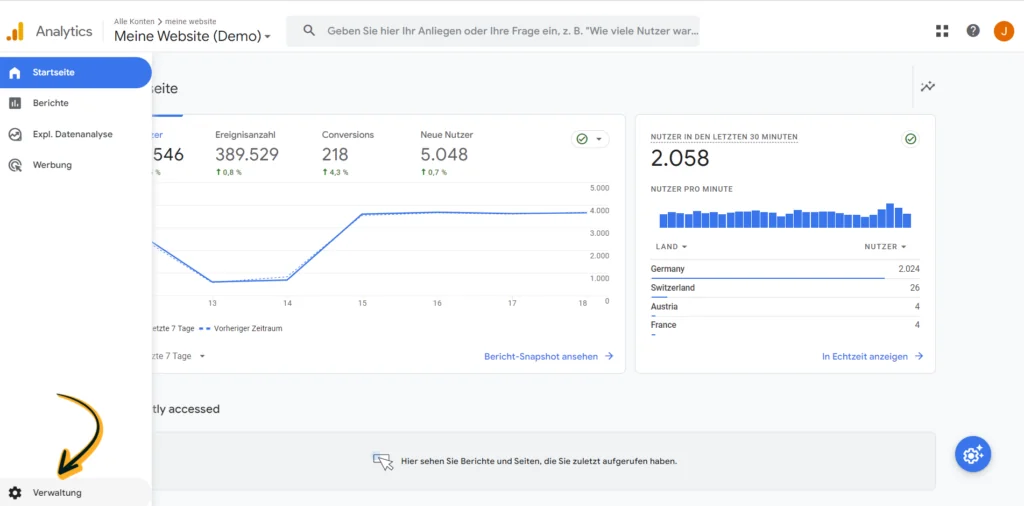
Once you have the URL of the conversion confirmation page, you can create an event for it in Google Analytics 4 and mark it as a conversion or key event. To do so, click “Admin” at the very bottom of the sidebar on the left.
A menu will open. Under “Property settings”, open the submenu under “Data display”. Then click “Events”. This section gives you an overview of all the events you have already created and shows which of them you have marked as conversions or key events. You can also edit existing events and create new ones here.
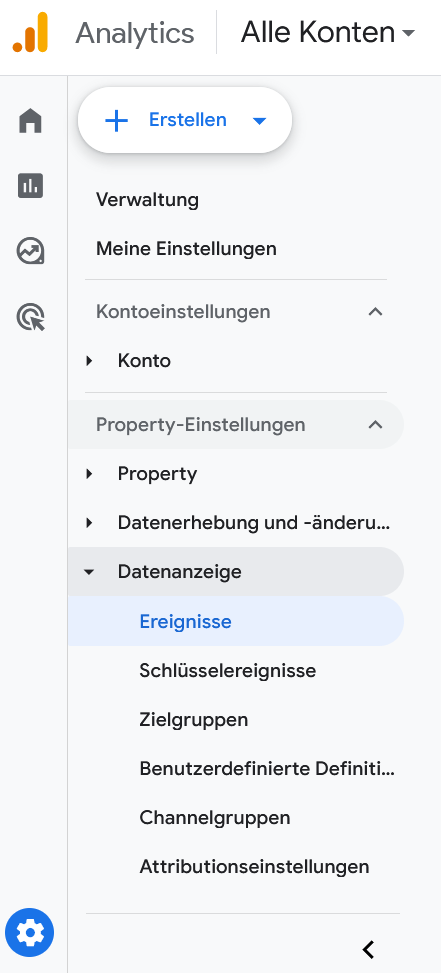
To create a new event, click the blue “Create event” button.
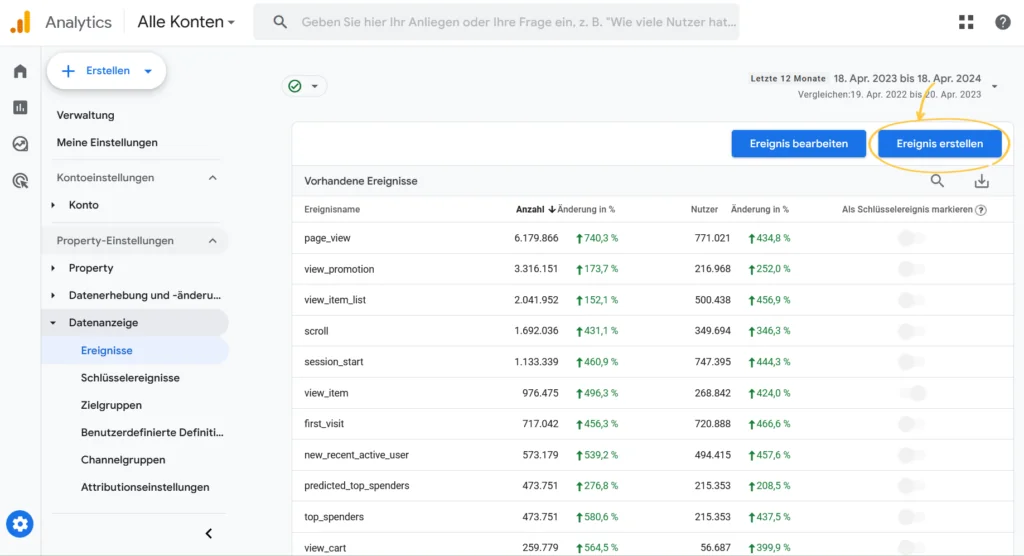
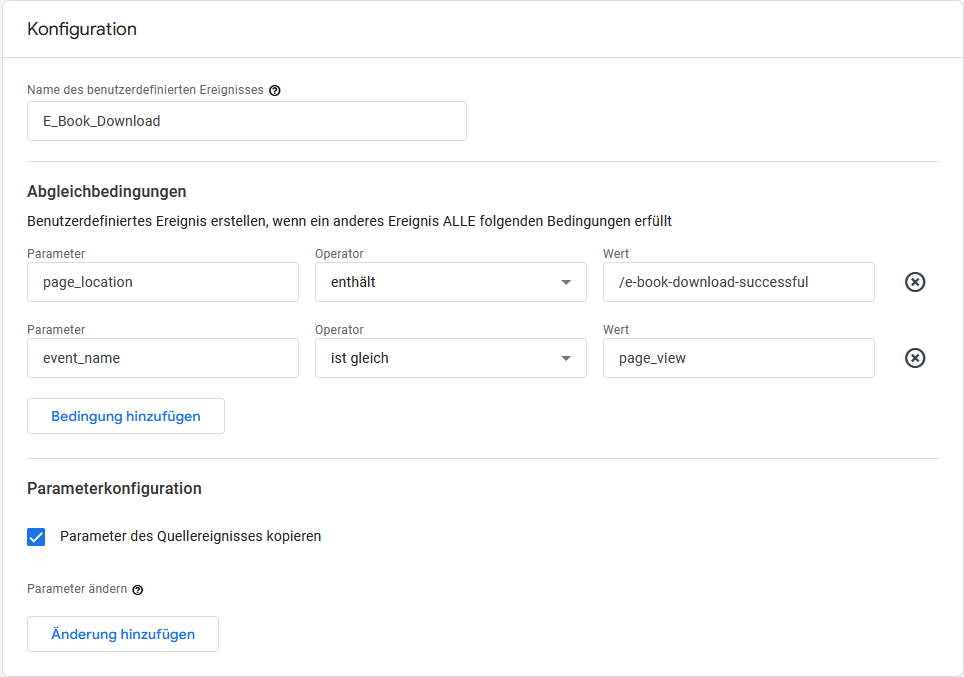
A window will open in which you need to click the “Create” button again to configure all the settings for your new event. In our example, we want our newsletter to generate as many e-book downloads as possible:
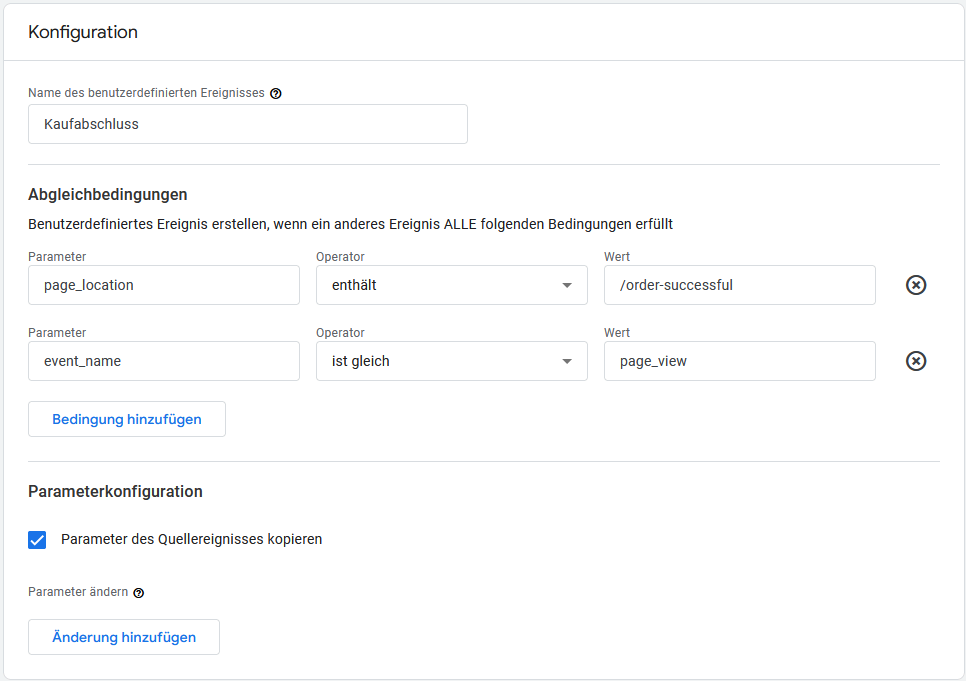
This is what your event settings would look like if you wanted to find out how many completed purchases in your online shop were generated by your newsletter:
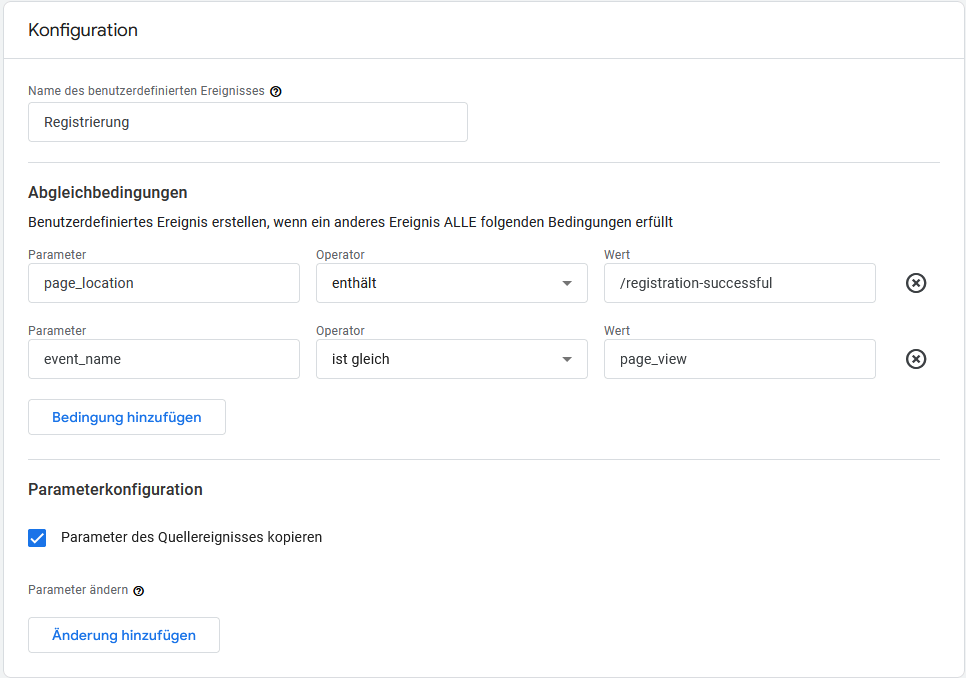
To track how many of your newsletter contacts register on your website, set up your conversion event as follows:
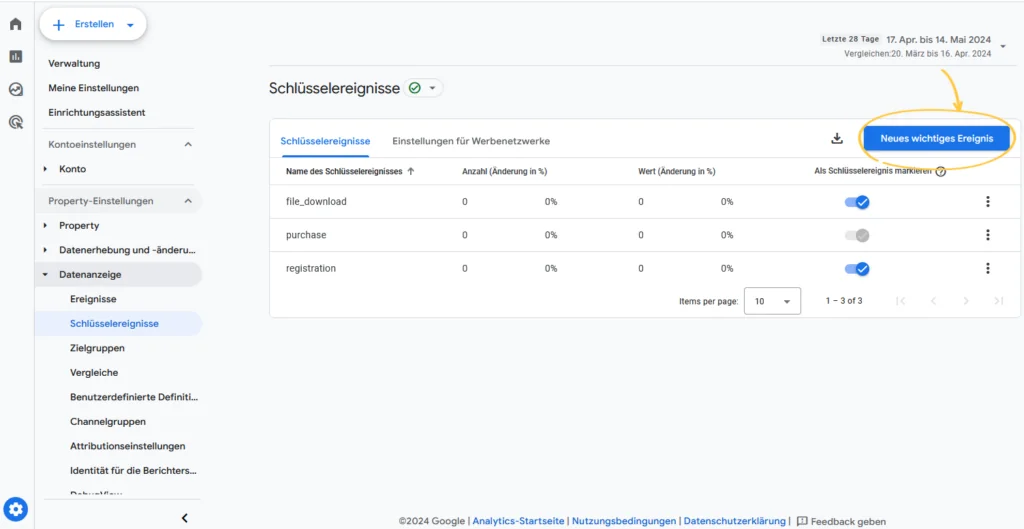
After creating the new event, you still need to mark it as a conversion or key event. On the Admin page, you will find a toggle on the far right of the table containing all events. Activate it to mark your event as a key event.
However, the new event has not yet been recorded in Analytics. You therefore need to mark it as a conversion or key event in advance. To do this, click “Key events” under “Data display” on the “Admin” page. Select “New key event” and enter the name of the event you have just created, and that’s it! You will then see all events marked as conversions in the overview:
💡 rapidtip
Google’s guide to setting up conversions in Google Analytics 4 contains more useful tips and a helpful video tutorial. Bear in mind that it can take up to 24 hours before you see the first figures for the events and conversions you have set up. By the way, instead of creating your events in your Google Analytics 4 account, you can also add them via Tag Manager if you use it.
Step 3: Add UTM parameters to link URLs in the newsletter
Once you have connected your website to Google Analytics 4, you can create your newsletter online as usual, for example using our rapidmail email marketing tool. You then only need to choose one additional setting before sending: for Google Analytics newsletter tracking, you need to add UTM tracking parameters to the link URLs in your newsletter.
Adding Google UTM parameters to the links in your newsletter allows visits to the URLs to be traced back to a specific newsletter at a later date, provided that your contacts have accepted the relevant cookies on your website.
You can currently use the following UTM parameters to track your newsletter marketing with Google Analytics 4:
| Name | UTM parameter | Meaning | Parameter type | Examples |
|---|---|---|---|---|
| Source / campaign source | utm_source | describes the source of the link | Required parameter | utm_source=newsletterutm_source=kundenmailing |
| Medium / campaign medium | utm_medium | describes the medium through which the link is accessed | Required parameter | utm_medium=e-mail |
| Campaign / campaign name | utm_campaign | describes the name of your campaign or the topic of your newsletter. To make the subsequent analysis clearer, it can be helpful to specify the year and/or month in which you sent your newsletter | Required parameter | utm_campaign=sommer-kollektion-2024utm_campaign=NL-07-2024 |
| Keyword / campaign term | utm_term | mainly used for paid Google ads, but can also be used for newsletter campaigns, for example to distinguish between different contact groups, sending times and so on | Optional parameter | utm_term=nk(e.g. new customers)utm_term=eg1(e.g. contact group 1) |
| Content / ad content | utm_content | can be used, for example, to find out which built-in call-to-action button or linked image in the newsletter generates more conversions | Optional parameter; to distinguish between different links in the same newsletter, it must be added manually to the relevant URLs | utm_content=cta-linksutm_content=cta-rechtsutm_content=headerbild |
👀 Did you know?
UTM stands for “Urchin Tracking Module” and refers to Urchin Software Corporation, one of the first companies to develop analytics software for tracking user behavior more effectively.
To add multiple UTM parameters to your link URLs, simply insert a “?” after the URL and then add all the required parameters, separating them with an “&”.
Let’s look at a specific example:
Suppose you send a newsletter in August 2024 inviting your subscribers to download your new e-book from your website.
The URL you link to in the newsletter is, for example, https://www.rapidmail.de/ebooks-und-downloads/e-mail-marketing-fuer-einsteiger
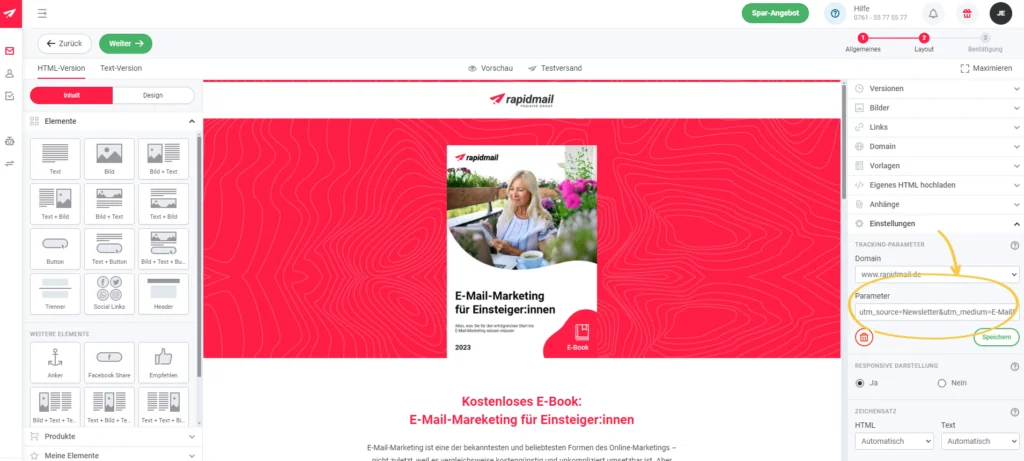
With rapidmail, you can enter all the UTM parameters that should be added to every link URL in the newsletter directly in the newsletter editor, under “Tracking parameters” in the sidebar on the right. Alternatively, you can add the parameters to the required link URLs manually:
Option 1: Add UTM parameters to all link URLs across the campaign
Option 2: Add UTM parameters to individual link URLs manually
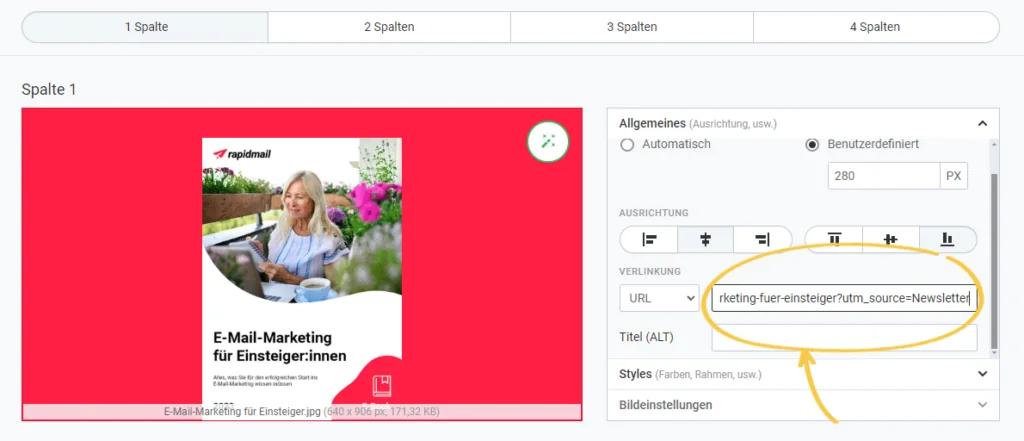
Once you have added the relevant UTM parameters in the rapidmail editor, either via the tracking parameter settings in the sidebar or manually in the link URLs themselves, the URL will look like this when a contact clicks the link in the newsletter: https://www.rapidmail.de/ebooks-und-downloads/e-mail-marketing-fuer-einsteiger?utm_source=Newsletter&utm_medium=E-Mail&utm_campaign=einsteiger-ebook-2024&utm_term=nk&utm_content=headerbild
Your link URLs are then ready for newsletter tracking with Google Analytics 4 and you can send the newsletter to your contacts. The next step is where it gets interesting: let’s look at how you can view newsletter conversions in GA4!
💡 rapidtip
With rapidmail, you can activate the “Tracking parameters” add-on for your newsletters yourself and then use it in the editor. Our help article explains how to activate the add-on. You can also learn more about UTM parameters in Google’s help article. Google also provides a free tool for creating campaign URLs, which you can use to build your newsletter links, including UTM parameters.
Step 4: Analyze newsletter conversions in Google Analytics
That’s it, you have configured all the required settings and sent your newsletter! Now things get interesting, because it’s time to analyze your newsletter using Google Analytics 4 and find out how successful it was and how many conversions it generated!
👀 Did you know?
For Google Analytics 4 to count conversions or “key events”, your users must have accepted the relevant cookies. 🍪 Conversely, this means that users who have rejected the cookies will not appear in GA4. The displayed results may therefore differ from the statistics from your newsletter tool, such as rapidmail.
A few days after sending the newsletter, open your Google Analytics 4 account and navigate to “Reports” in the sidebar on the left, then to “Acquisition” under “Life cycle”, followed by “Traffic acquisition”. In the table below the chart, select “Session - source/medium” on the left instead of “Session - primary channel group (Default Channel Group)”.
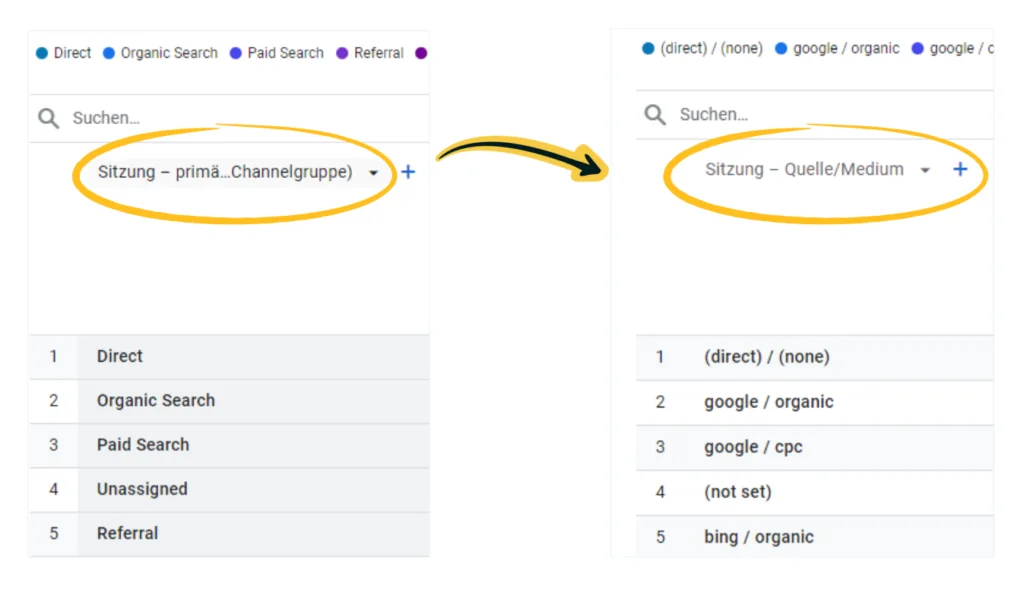
Next to it, you will find a plus sign. Click it to add another dimension. Search for “Session - campaign”. To display only your email campaigns, scroll up and click “Add filter” on the left. A sidebar will open. In the “Dimension” field, select “First user medium”, choose “contains” as the match type and enter “E-mail” as the value.
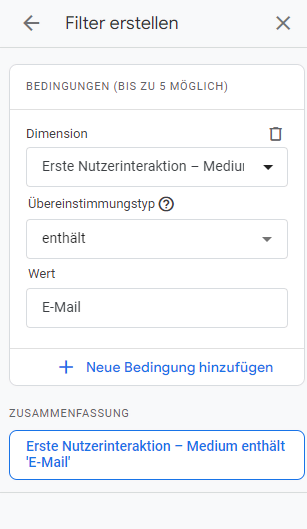
Now click “Apply” and voilà, the table will display lots of interesting KPIs for your campaigns, including users, sessions and average engagement time, as well as conversions, or “key events”. These are the events you defined previously, such as an e-book download, completed purchase or registration.
You can filter by these conversion events in the “All events” drop-down menu and, for example, display only the registrations generated by your campaign. The last column in the table also shows the total revenue generated by your newsletter if you have stored the relevant values in Google Analytics 4. 💸

Conclusion: newsletter tracking with Google Analytics 4
Depending on your industry, company, products and newsletter content, there are many different ways to track newsletter conversions with Google Analytics. Unfortunately, we cannot cover every individual scenario. We have therefore selected just a few examples in this article that can be very useful to the majority of newsletter senders. If you have any further questions on the subject, Google itself also provides plenty of useful information about conversion tracking.