Create a mail merge with Outlook: Is Outlook suitable as a newsletter tool?

If you use Outlook for email communication, you have probably already noticed that it can create and send mail merge emails. But what exactly are Outlook mail merge emails? And does this mean that your company can use Outlook to create newsletters for free and send them to your target audience? We explain how this works in theory and why a professional newsletter tool is generally the better choice.
🥜 In a nutshell: The key facts about mail merge emails with Outlook
Although Outlook lets you create and send mail merge emails via Word and Excel, it is only suitable for professional email marketing to a very limited extent. A lack of automation, no reliable deliverability and hardly any reporting options make Outlook a temporary workaround rather than genuine newsletter software in the long term.
At a glance:
- ✔️ Outlook mail merge: Creating emails in Word (mail merge) and sending them via Outlook is technically possible, but the functionality is very limited.
- ✔️ Biggest weaknesses: No professional contact management, no A/B testing, no preview, no reliable display across all devices and no tracking.
- ✔️ Deliverability and spam risk: Outlook is not designed for bulk sending, so newsletters are more likely to end up in spam.
- ✔️ No scalability: The sending limit (a maximum of 500 contacts per email) and lack of automation hold back your email marketing.
- ✔️ The better alternative: A professional newsletter tool such as rapidmail gives you automation, templates, GDPR-compliant contact management, performance analysis and high deliverability.
With rapidmail, you create newsletters that not only arrive but are also read and clicked, with no technical workarounds required.
1. How to create a newsletter with Outlook: A step-by-step guide
👀 Have you seen this? How to send mail merge emails with Outlook
In this practical video tutorial, our Content Manager Wiebke explains how you can use Word, Excel and Outlook to send mail merge emails. Roll the video! 🎬
Open video transcript
Chapter 1: Introduction
Do you want to create mail merge emails with Outlook? Today, I’ll explain how to do it in just a few minutes and show you an even better solution for your “bulk emails” at the end. Let’s get started!
Chapter 2: How to create a mail merge email with Outlook
Before you can send your mail merge email with Outlook, you first need to create your contact list in Excel and then write your mail merge email in Word.
2.1 Create a contact list in Excel
Let’s start with Excel. Here, you need to create a list of contacts to whom you want to send your Outlook mail merge email later. The best way to understand this is with a specific example: let’s imagine I owned a flower shop and wanted to tell my customers about my current range and special offers. For the list, I’ve collected each contact’s title, first and last name and, of course, their email address. You can naturally collect much more data with additional information about your customers, but these details are enough in this case. Make absolutely sure that you enter the headings for the respective columns in row 1 so that it is perfectly clear which information can be found in each column.
2.2 Write the mail merge email in Word
We can then start writing the mail merge email. To do so, we switch to Word and open a blank Word document. Click “Campaigns” on the ribbon at the top, then select “Start Mail Merge” and “E-mail Messages” from the menu. The Word document is now effectively in mail merge mode. We can select our recipients straight away by clicking “Use an Existing List”. I find the list we just created in my files and confirm my selection.
Now we can get down to business! It is best to start our mail merge email with a personal greeting. There are several ways to construct one using the mail merge fields. This is where you will find the headings from the columns in your Excel document. This means we can insert the title and first and last name individually for each recipient, for example. For the BLOOM flower shop’s mail merge email, a greeting such as “Hello Mr Smith” would not be quite right. I would opt for the more informal “Dear Max”. To make this work, we need to create a rule: if the Title field equals “Mr”, insert “Dear”; otherwise, insert “Dear”.
You can also check that everything works and see how the mail merge email will appear to the different contacts. To do this, click “Preview Results”. It looks good, so let’s move on to the copy.
I’ve already prepared copy for BLOOM’s newsletter, but you can write your text directly in the Word document and edit it as you wish. You can also format your mail merge email like a normal Word document, for example by using different fonts and colors, inserting images or adding a colored border to sections of text. However, there is no proper preview function, which means you cannot check how the email will actually appear in your recipients’ various email clients and on different device types. I therefore recommend keeping the mail merge email as simple as possible to prevent any unwanted chaos.
And just like that, the mail merge email is ready to send! To send it, click “Finish & Merge” in the menu bar and then “Send E-mail Messages”. Now simply select the option to send the mail merge email to the email addresses from the Excel file and choose a subject line. For the email format, select “HTML Message”. When you then click “Merge to Outbox”, your mail merge email will be sent.
This immediately shows you why Outlook is not the ultimate solution if you want to send truly effective bulk emails.
Chapter 3: Why a dedicated newsletter tool is the better choice for bulk emails
- There is a very high risk that your Outlook mail merge email will end up in your contacts’ spam folders or not be delivered at all because email providers classify it as spam. Dedicated newsletter tools, however, use various authentication methods to ensure that your emails are classified as trustworthy and delivered reliably.
You can read about more reasons why Outlook is unsuitable for professional marketing emails, as well as further benefits of software designed specifically for this purpose, in our detailed blog post. You will find the link in the information box!
Chapter 4: Conclusion
As you have seen, sending mail merge emails to your contacts with Excel, Word and Outlook is really not rocket science. But if you want to send professional, legally compliant emails that impress your contacts, help raise your company’s profile or boost your sales, I would advise against Outlook mail merge emails and recommend dedicated newsletter software such as rapidmail.
If you would like to try rapidmail, the link in the video description gives you a 50% discount on your first invoice. And your first send to up to 2,000 recipients is always free anyway. Have fun trying it out!
If you enjoyed the video, please leave a like and let us know in the comments whether you have any experience with a newsletter tool.
Thank you for watching and see you next time!
The easiest way to send an Outlook newsletter is to first create it in Microsoft Word and then send it to the desired contacts via Outlook. But first things first: since Outlook offers very limited newsletter functionality, sending infrastructure and design options, Outlook mail merge emails are not suitable as a marketing tool for companies that want to use them to sell products or build long-term customer loyalty, for example. We will come back to this later.
First, let’s look at how sending newsletters with Outlook is theoretically possible. When creating your newsletter, do not be confused by the terms “mail merge” or “email merge” used in the Outlook email app and Word. According to Outlook, this function lets you “create a mail merge or email merge intended to be sent to a group of contacts”. That is exactly what we want to achieve with our newsletter. So let’s get started!
To make the guide easier to follow, it is best to work through each point step by step and create a test newsletter with Outlook:
Step 1: Create an Outlook newsletter in Microsoft Word
- Open a blank Word document
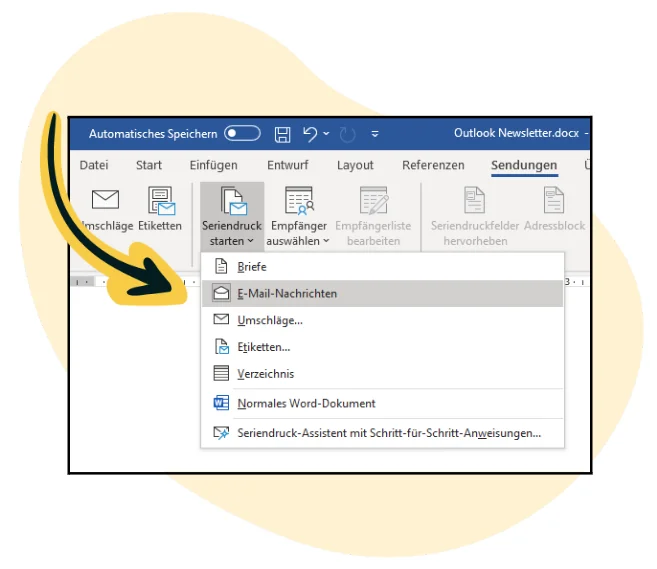
- Click “Campaigns” on the ribbon at the top, then select “Start Mail Merge” and “E-mail Messages” from the menu. Your Word document is now effectively in newsletter mode.
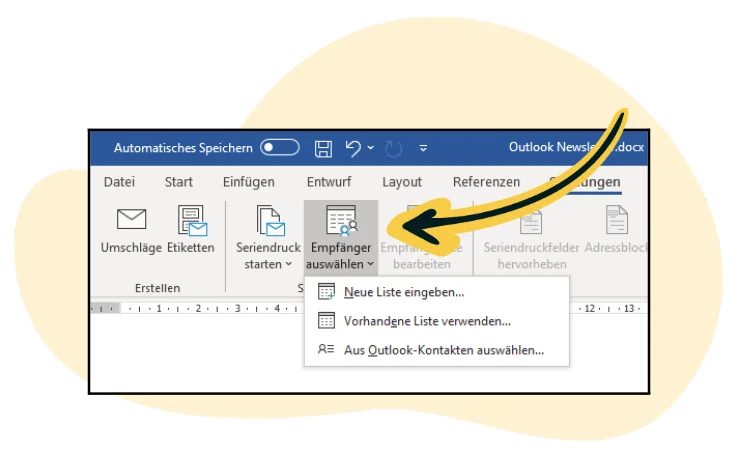
- Then click “Select Recipients” in the menu. Depending on who you want to send the Outlook mail merge email to and how many people there are, you can choose from three options: “Type a New List” lets you enter individual recipients’ contact details manually and save them as a new recipient file on your PC; “Use an Existing List” lets you select an Excel or CSV recipient file saved on your computer; and “Choose from Outlook Contacts” lets you select specific contacts from your Outlook app as recipients of your newsletter. It is not enough to have emailed the contact before or received an email from them. You must first save the contact address in your app, for example by right-clicking the email address and selecting “Add to Outlook Contacts”.
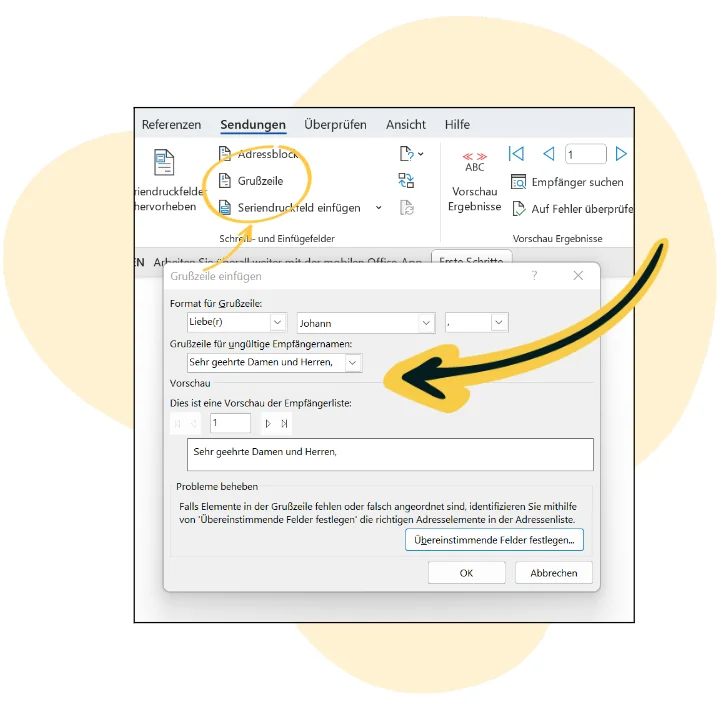
- Now we can get down to business: it is best to begin your Outlook mail merge email with a personal greeting! If you have other contact details in addition to the email address, such as a first or last name, you can use them to address your recipients personally in the newsletter. To do this, click “Greeting Line” in the menu. In the pop-up window, you can now set the format for your personalized salutation. When you click “OK”, the greeting appears in your email as «Anrede». Make sure you also provide an alternative greeting for all contacts whose names are missing from your newsletter list. In our example, we enter “Dear Sir or Madam”:
- You can then write your newsletter and link the text to your website if necessary (for example, by right-clicking and selecting “Link”). In theory, you have all the options you would when using Word as a conventional word processor. For instance, you can insert images or add colored borders to sections of text. Unfortunately, one disadvantage of an Outlook newsletter is that the intended appearance of the email and its actual appearance in the recipients’ email clients often differ considerably. Since you also have no display test or preview function before sending, you should keep your Outlook mail merge email as simple as possible and preferably avoid graphic elements.
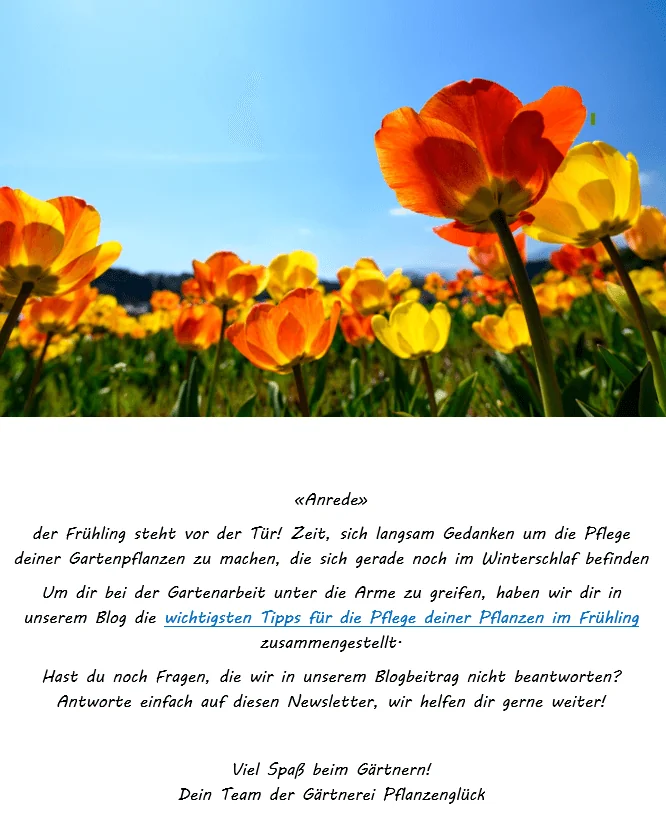
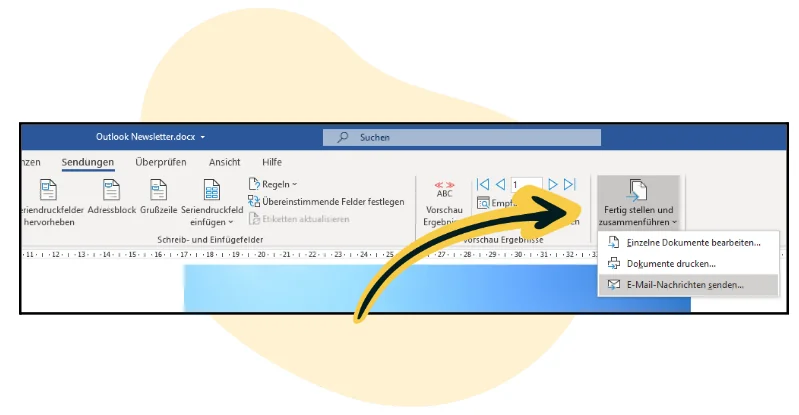
Step 2: Send the newsletter you created with Outlook
Our Outlook mail merge email is ready to go. Now we just need to send it!
- In your Word document, click “Finish & Merge” in the menu and then “Send E-mail Messages”.
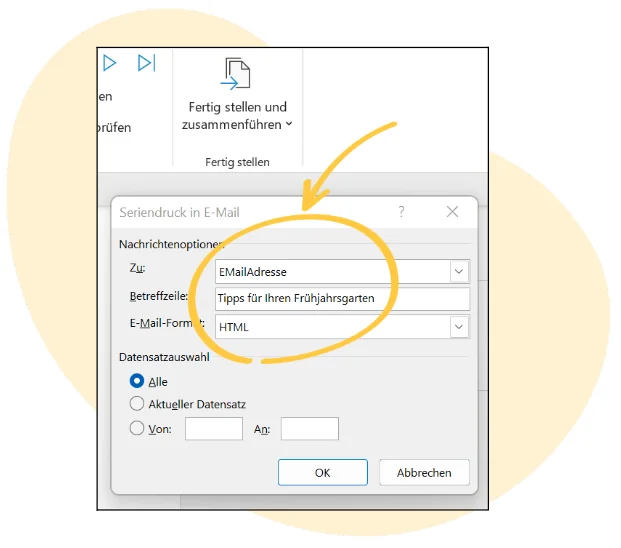
- In the pop-up window, you can now enter the desired newsletter subject line. Make sure that “EMailAdresse” is selected under the message options at the top and that “HTML” is selected as the email format.
- Then click “OK” to start sending your Outlook newsletter.
👀 But wait!
When we look at the Outlook mail merge email we have sent from the recipient’s perspective in our email inbox, it quickly becomes clear that Outlook is definitely not THE perfect newsletter tool because it has some obvious disadvantages… ⬇️
2. The disadvantages of using Outlook as a newsletter tool
The major advantage of Outlook as newsletter software is that you can send emails at no additional cost. In contrast, a professional newsletter tool with all the essential features and necessary infrastructure involves a monthly fee or a payment for each send, depending on the package you choose. However, when we look at the many disadvantages of Outlook compared with genuine newsletter software, it quickly becomes clear that this modest expense is definitely worthwhile for any company:
With Outlook as your newsletter tool…
- …you cannot manage contacts across newsletters: If contacts no longer want to receive the newsletter, for example, they cannot simply click the unsubscribe link to remove themselves from the newsletter list. There is also no blacklist where you can add specific contact addresses to prevent these recipients from receiving your newsletter again in the future.
- …there is very little scope for personalized newsletter content: Only the greeting can be personalized, and even this comes with limitations.
- …you cannot add attachments to mail merge emails: If, for example, you want to attach information about other offers, your current menu or coupons for the following week to your newsletter, Outlook is the wrong choice and you will have to find an alternative solution.
- …you cannot test different subject line variants in advance: Since Outlook does not offer A/B testing for mail merge subject lines, you cannot first test which subject line variant performs better on a small proportion of your contacts.
- …there is no preview function or display test before sending an email: Although the Outlook newsletter looked attractive in the Word document and was sent in that form, it is not displayed correctly in the web.de email client, for example. This means that every time you send an email, you cannot be sure what your recipients will actually see when they open it.
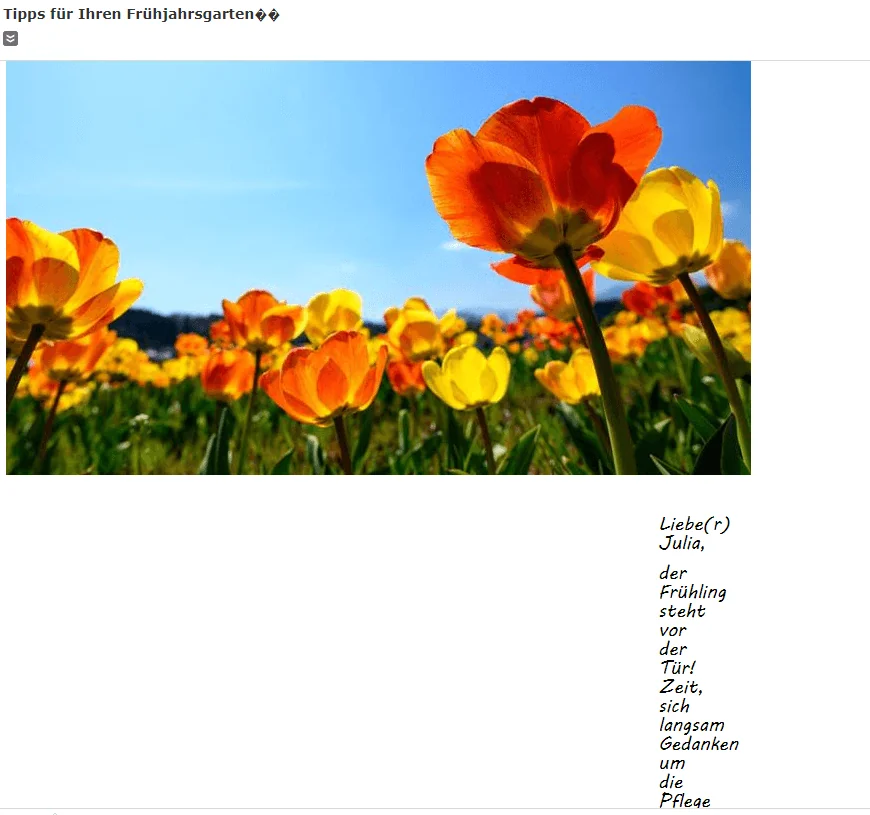
- …emails are not displayed responsively by default: More and more people read their emails on a smartphone. When you send newsletters with Outlook, the campaign’s display does not automatically adapt to the smaller screen, making the newsletter virtually impossible to read on a mobile phone.
- …Outlook does not provide any free newsletter templates: Every mail merge email sent with Outlook has to be created and structured from scratch. There are no free templates available where you only need to insert your text.
- …you have limited design options: Apart from inserting images, you cannot give an Outlook newsletter an appealing design or structure. Naturally, this ultimately leads to fewer clicks and potentially more unsubscribes in the medium term.
The rapidmail newsletter
Tips, ideas and news about email marketing, straight to your inbox.
- …your newsletter is more likely to be classified as spam: Outlook’s entire infrastructure, including its servers and IP addresses, is not designed for sending bulk emails. Receiving servers therefore often classify newsletters sent via Outlook as spam. Outlook also does not add information to the email header to indicate that the email has been sent to a large number of contacts. As a result, email providers such as Gmail do not know that you are sending the newsletter to many contacts who have given their consent and that the spam filter should not be triggered.
👀 Did you know? The risks of mail merge emails with Outlook

If you use Outlook to send larger campaigns (for example, to more than 50 recipients), you run the risk that mail servers and email providers will classify your newsletters as potential spam and scrutinize you as the sender.
Unlike professional newsletter tools, Outlook does not use mail servers or IP pools designed for sending large volumes. Without authentication methods such as SPF, DKIM and DMARC, your sender IP address or domain may receive a lower rating, causing your emails to end up in spam, be blocked or, in the worst case, not be delivered at all. This can cause lasting damage to your email reputation and even have a negative impact on future business emails.
- …you can send your mail merge email to a maximum of 500 contacts: The limit of 500 contacts per message quickly becomes a nuisance for larger companies with many subscribers, as well as small but popular businesses that send newsletters.
- there is no way to measure the success of your newsletter: Your Outlook app does not show you how many people your content ultimately reached, nor can you find out which topics appeal to your readers, for example.
Send newsletters with rapidmail now
3. The better alternative to mail merge with Outlook: Send newsletters with rapidmail
Companies, organizations and associations often use newsletters for direct marketing. They are intended to inspire, inform, build reader loyalty to a brand or encourage purchases. For the reasons listed above, this is virtually impossible with newsletters designed using Outlook.
Instead, choose successful email marketing with a professional newsletter tool that makes it easy to create and send newsletters your subscribers will enjoy reading. Even as a beginner, you can conjure up a campaign that delights your customers in just a few clicks. But that is not the only advantage!
👀 Have you seen this? Explore rapidmail
In this video, our Content Manager Wiebke introduces you to our newsletter software and shows you the features and benefits you can expect from rapidmail. Here’s one thing in advance: with rapidmail, you do not need to be a newsletter professional to send professional newsletters!
So press play, sit back and become a newsletter professional along the way. Roll the video! 🎬
Open video transcript
Chapter 1: Introduction
No time for lengthy onboarding and complex features? rapidmail makes it easy to create and send great newsletters!
Email marketing with rapidmail gets you to your destination in no time, whether you want to win new customers, attract more attendees to an event or boost sales in your online shop.
Hi, my name is Wiebke, and today I will show you that you need neither previous experience nor a lot of time to design great newsletters with rapidmail and move closer to your business goals. So let’s not beat around the bush. Let’s get started!
Chapter 2: Navigation and first steps
The dashboard takes you wherever you need to go. For example, you can create a new campaign straight away. To make your newsletter a hit with your contacts, you can address them individually using our personalization formulas, add emojis to the subject line and keep an eye on the automatic subject line checker. This shows you how effective your subject line is and how you could improve it.
Our 1-Click-Design makes designing newsletters child’s play. Simply enter your website URL, and ta-da: rapidmail conjures up a design template featuring your logo, company colors and fonts. If you wish, you can make further adjustments here and then save it.
Now choose one of more than 250 free templates, and your newsletter’s basic structure is ready! You can now replace and populate all the content as you wish.
Chapter 3: Design and customization
The integrated image editing and our free image library, where you will find more than 1.5 million high-quality, royalty-free images, are particularly useful. This saves you extra steps and additional tools!
If you have an online shop, our free plugins make it easy to connect it to rapidmail and automatically synchronize your customer and product data. You can then pull products directly from your online shop into your newsletter with our one-click product import.
Now it is time to scrutinize your draft with the preview function: is the personalization working? Does the newsletter look good on different devices? You can now send test emails to up to 10 email addresses, completely free of charge, of course!
Before the newsletter goes out, put its deliverability through its paces and make any final corrections. This ensures that your campaign does not end up in spam. Thanks to our excellent deliverability, rapidmail gets your newsletter to its destination particularly reliably.
Is everything looking good? Your newsletter can now set off on its journey, either immediately or automatically at a scheduled time. Incidentally, your first send to up to 2,000 contacts is on us, so you can test rapidmail at your leisure.
Chapter 4: AI sending planner
If you are ever short of a brilliant idea for your newsletter content, our AI sending planner uses artificial intelligence to conjure up a personalized newsletter campaign plan for your company. Simply enter your company name, a few keywords and a short description, and ta-da: there is your personalized campaign plan with newsletter ideas for the whole year!
Chapter 5: Gaining contacts
rapidmail also helps you gain new contacts. Just like with 1-Click-Design, you can create newsletter sign-up forms that perfectly match your website design in just a few clicks.
You can easily upload existing contacts to rapidmail from CSV, Excel or text files using copy and paste. You can also assign as many tags as you like to your contacts to ensure they only receive campaigns that genuinely interest them.
Chapter 6: Data protection and segmentation
Data protection is our highest priority! All processes at rapidmail are 100% GDPR-compliant. Your contact data is stored exclusively on servers in Germany, so there is no need to worry.
To target your contacts with particular precision, you can divide them into segments, for example by age group, gender or location, then select these when sending to deliver your newsletter only to specific subgroups.
By the way, we are always happy to talk! If you have any questions or difficulties, our support team will be glad to help, free of charge by phone or via the ticket system directly in the tool.
Chapter 7: Reporting and analysis
After sending your newsletter, you can track its success in real time. Thanks to the automatically generated newsletter statistics, rapidmail gives you an overview of all the key email marketing KPIs.
Our campaign statistics help you understand your target audience’s interests and wishes better and better so that you can send more successful newsletters.
Want all the details? The activity history for individual contacts shows you exactly which campaigns a recipient has received, opened and clicked. These reporting options help you get to know your contacts better and target your newsletter sends even more precisely.
Chapter 8: Email automation
If you want to tailor your email marketing even more precisely to your contacts, you should definitely try our email automation. You need no previous experience and can create personalized email sequences in just a few clicks, for example for welcome and birthday greetings or multi-part courses. We have practical workflow templates that make it even easier to get started!
Chapter 9: Pricing
Finally, a few words about our prices: if you want complete flexibility and prefer to pay only when needed, our Pay as you go plan is ideal for you. If, on the other hand, you want to send newsletters regularly, our “Starter” and “Premium” monthly subscription packages are perfect. You can get started from just €15 per month and send an unlimited number of emails. Our pricing calculator on the website helps you find the right package. Naturally, you can switch, pause or cancel your package at any time.
Sound good? Then simply try rapidmail for free and see for yourself that rapidmail lets you send professional newsletters without being a newsletter professional yourself!
With rapidmail as your newsletter tool…
- …contact management has never been easier: Whether you receive new registrations through the newsletter sign-up form on your website, newsletter unsubscribes or new customers who have registered in your online shop and consented to receive your newsletter, rapidmail manages your newsletter contacts virtually on its own!
- …you have access to extensive personalization features: Address your recipients personally not only in the newsletter copy, but also use rapidmail to personalize the newsletter subject line or content. For example, add individual coupon codes to your emails or display a specific discount amount depending on the contact.
- …you can conjure up newsletter ideas tailored to your company: Use our AI sending planner to create a personalized newsletter campaign plan for your company, packed with creative ideas for the whole year.
- …newsletters can be created automatically in your corporate design: Our 1-click design makes it easy to adapt many of our newsletter templates to your corporate design, further increasing your brand recognition.
Here’s how it works: simply enter your website URL and our 1-click design imports your company colors, fonts and social links in seconds. You can then adjust the color of the background, campaign area or text section, for example. Now all you need to do is apply the final design, and you will have access to a wide selection of templates tailored precisely to your corporate design. 🖌️
- …you can easily add attachments: Our newsletter editor lets you send PDFs, image files or ZIP files with ease, for example. You can add and edit the attachment at any time while creating your newsletter.
- …you can always test your newsletter subject line in advance: Not sure which wording will appeal more to your readers? No problem. With rapidmail, you can easily test two subject line variants on a small proportion of your contacts in advance and then send the winning subject line to the remaining subscribers.
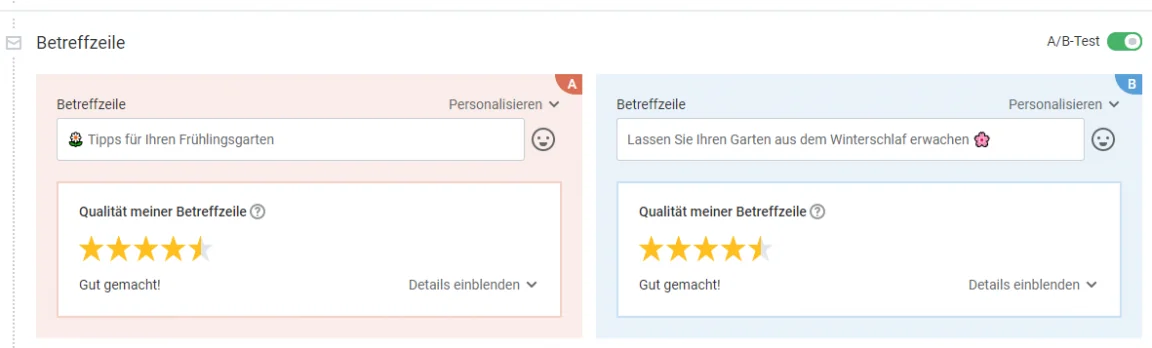
- …emojis in your email subject line increase open rates: Add any emoji to your email subject line to draw your contacts’ full attention to your newsletter in their inboxes.
- …you can see how your newsletter will look in advance: Use the display test or practical preview function to check beforehand how your newsletter looks on a smartphone, for example:
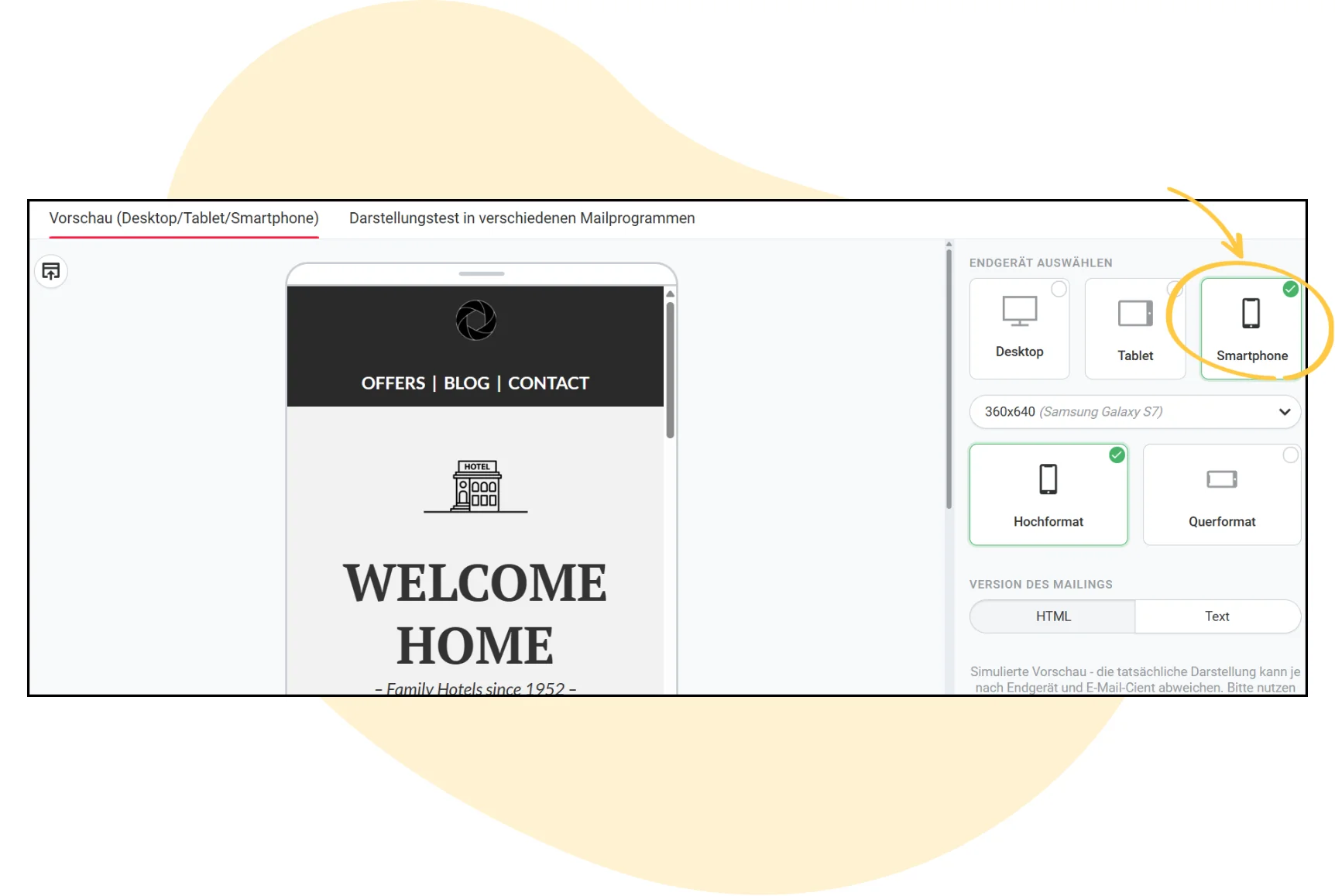
- …all your campaigns are displayed correctly on smartphones: Whether you use one of our templates or create your own newsletter design, all newsletters sent with rapidmail are automatically responsive.
- …you have access to 12 free newsletter templates: We have the right newsletter template for every occasion, industry and season!
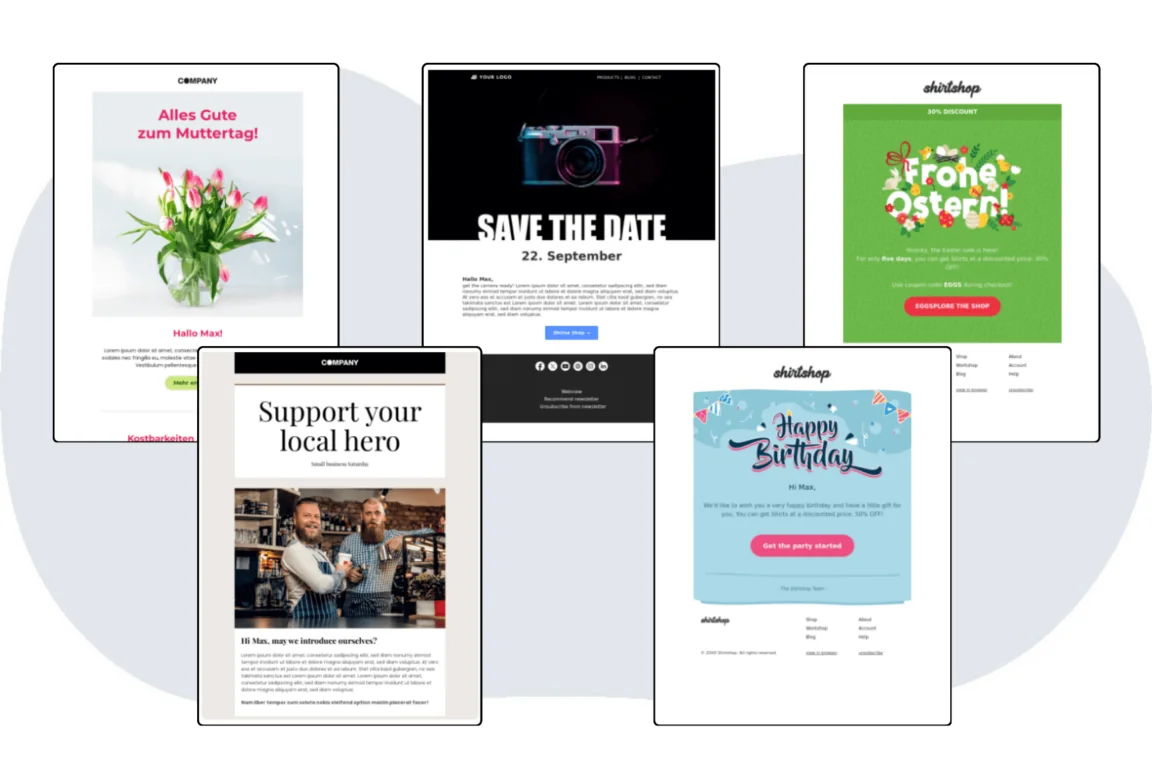
Choose a template and get started now
- …you can send automated emails: Send your customers automated birthday emails or welcome emails to greet them, for example.
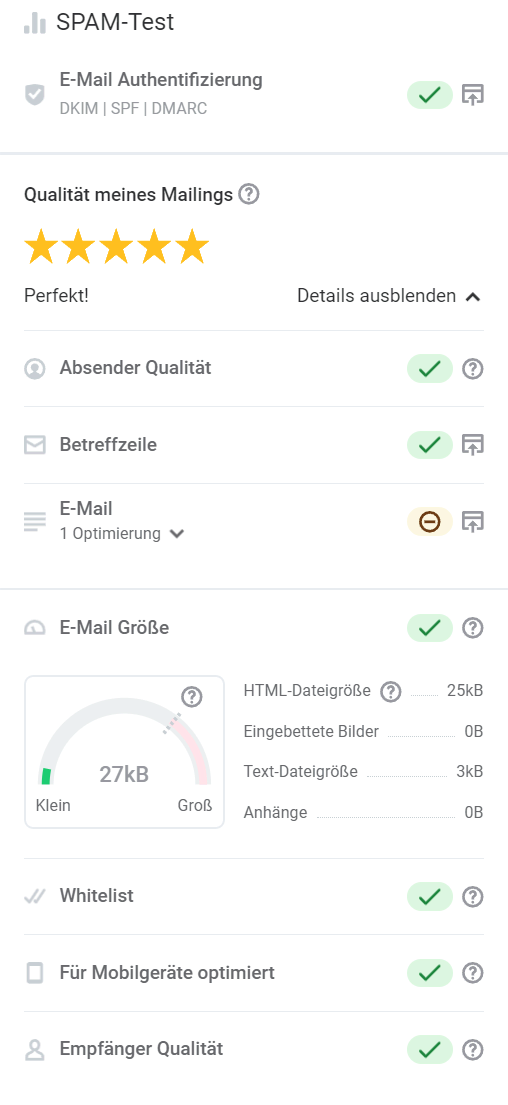
- …all your newsletters arrive safely: rapidmail’s whitelisting, our sending infrastructure and our rapidmail deliverability experts ensure that your newsletters genuinely reach your contacts. For example, rapidmail automatically adds information to your email header indicating that the email has been sent to many recipients. This lets email providers such as Gmail know that sending to so many contacts is intentional, which reduces the risk of being classified as spam. We also provide an automatic spam test that estimates the likelihood of your campaign ending up in the spam folder before you send your newsletter.
- …you can send as many emails as you like every day: Depending on the package you choose, you can send newsletters to as many contacts as you like, with no limit on the number of newsletters you can send.
- …after sending, you automatically see how successful your newsletter was in your account: rapidmail’s extensive newsletter statistics show you, for example, how many contacts opened and clicked your newsletter, where they clicked in the newsletter and the time at which most emails were opened.
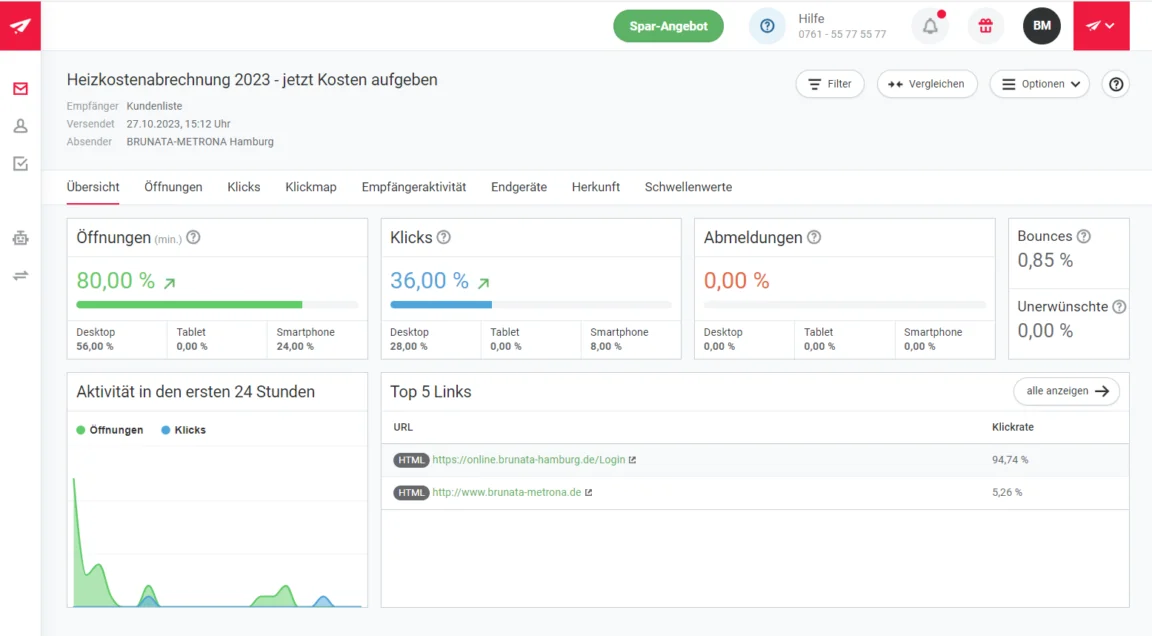
- …our support team helps you immediately if you get stuck: Simply call us free of charge or write to us. Our support team will help whenever you need it.
Send newsletters with rapidmail now
4. How to switch from online mail merge with Outlook to professional newsletters with rapidmail
You need no lengthy preparation to create your first newsletter online with rapidmail and send it:
- Create an account
- Export your contact lists from Outlook
- Import the contact list into your rapidmail account
- Watch our introductory video about the rapidmail editor
- Create and send your first newsletter
🎉 Ta-da, that’s it! Congratulations on your first rapidmail newsletter. Your contacts and prospects will love it!
👀 Did you know?
If we have now convinced you to try rapidmail for creating and sending your newsletters, we have a gift for you as a new customer: your first send with rapidmail to up to 2,000 contacts is completely free! So what are you waiting for?