Blacklists in email marketing: why blacklist newsletter contacts?
 Lena·
Blacklists in email marketing can serve two different purposes. On the one hand, providers such as GMX can blacklist email senders suspected of spam, which is a list you definitely do not want to appear on as a newsletter sender. This article, however, focuses primarily on blacklists that you can use and manage yourself as the sender of marketing emails to exclude certain contacts from newsletter sends. But when should newsletter contacts be placed on such a blacklist?
1. Glossary: useful terms relating to blacklists at a glance
Blacklists, email providers, domains and more:
You will encounter several technical terms in this article. To help you keep track, we have put together a short glossary.
| Term | Explanation | Alternative terms |
|---|---|---|
| Server | A server is essentially a computer that is always switched on and connected to the internet. rapidmail's servers send your newsletters for you, for example. | Data input unit |
| IP address | An IP address establishes the connection between a device and a destination. It uniquely identifies every device on the internet. It is a standardized sequence of numbers that uniquely identifies each computer in a network such as the internet. | |
| Email provider | The provider is the person, organization or company with which you have an email inbox. It ensures that emails reach recipients, that you can send messages and that emails are stored securely in your inbox. Providers include services such as GMX, web.de and Gmail. | |
| Email domain | An email domain is the final part of an email address after the @ sign. Familiar examples include gmx.de, outlook.de and gmail.com. | Network address, domain address |
| Sender | A sender is the person who sent the campaign. | |
| Recipient | The person who is meant to receive the email. Recipients can be managed in a newsletter tool such as rapidmail. | Contact, subscriber |
| Blacklist | A blacklist is generally a list of names or email addresses that, in email marketing, prevents senders from distributing inappropriate content without permission. | Deny list, blocklist |
| Whitelist | A whitelist is the opposite of a blacklist. It is a list of email addresses or senders regarded as legitimate and reliable. | Allow list, safelist |
2. What is a blacklist when sending newsletters?
Being on a blacklist sounds frightening at first. Fortunately, when sending newsletters, it is not quite as life-threatening as it is in the well-known thriller series “The Blacklist”. You can think of the blacklist as a wall that prevents spam emails from reaching the intended recipients’ inboxes. Newsletter recipients therefore have nothing to fear if a sender blacklists them.
Nevertheless, newsletter senders face major problems if they appear on the blacklist of an email provider such as GMX.
🔍 Definition: blacklist in email marketing
The term blacklist describes a type of filter for excluding particular email or IP addresses or domains. In practice, an email provider no longer delivers messages from senders on its blacklist. An email blacklist is primarily created to protect recipients from spam, malware-infected emails and unwanted promotional messages. The opposite is a whitelist, whose senders are rated particularly legitimate, reputable and safe. In email marketing, blacklist also refers to a list created by senders for contacts who should no longer receive newsletters.
As you can see, email marketing has two different types of blacklist that may affect you as a newsletter sender:
Blacklists for newsletter senders and blacklists for newsletter recipients.
Blacklists for newsletter senders
There are essentially three different ways in which a sender can appear on an email provider’s blacklist. If spam is suspected, email addresses, domains or entire servers and their associated IP addresses can end up on such a list.
You can think of these options as an ascending hierarchy.
- First, email addresses such as info@mail.de can be blacklisted if the provider detects that the sender is distributing inappropriate content.
- If the sender attempts to continue sending spam from a newly created address such as news@mail.de, the email provider can next put the sender’s domain on the blocklist.
- If the sender continues trying to distribute inappropriate content, for example through another server, the server’s IP address can ultimately also be blacklisted.
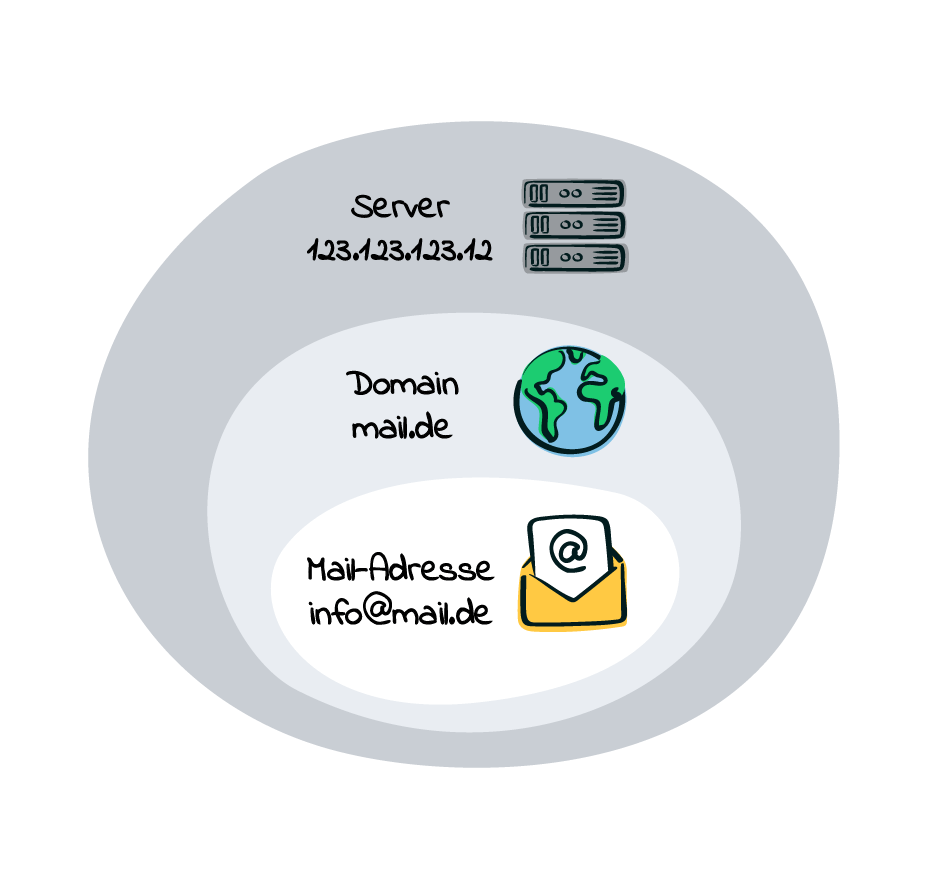
In summary, email delivery uses a blacklist containing senders’ email addresses, domains or servers. An email provider generally refuses all messages from them and does not deliver them to recipients.
The reason is that email recipients receive ever more unwanted spam. To protect them, a special spam filter in the email program checks every incoming email. If it classifies a sender’s messages as spam, the sender address or domain may end up on the program’s blacklist. From that point, the email provider automatically rejects every email sent from that address or domain.
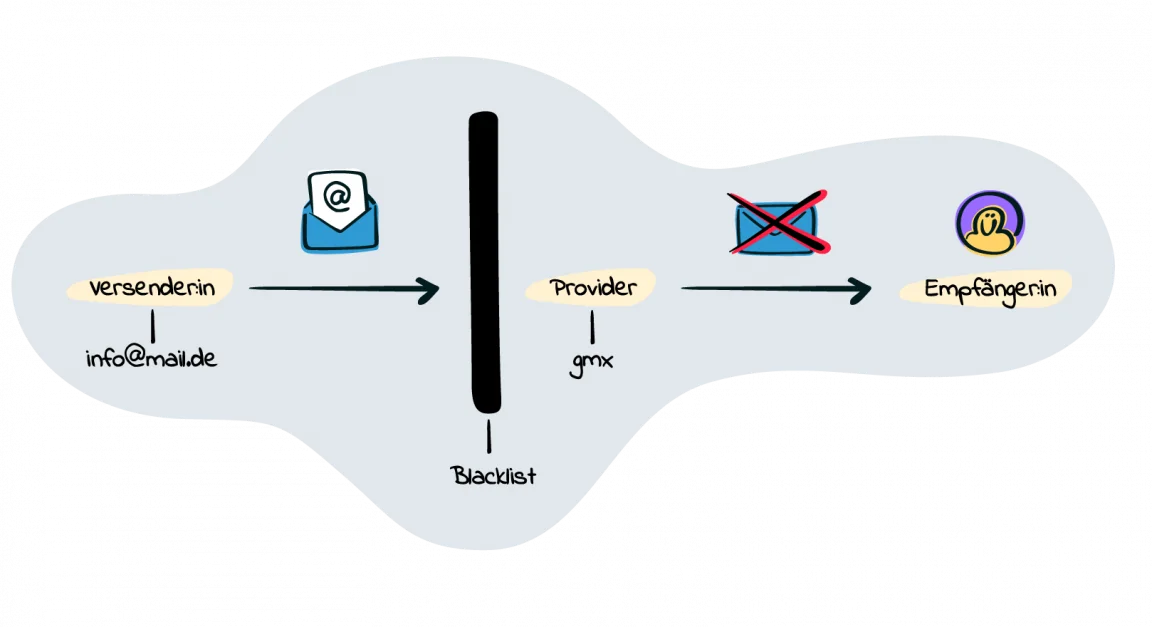
To avoid this, you must maintain a good sending reputation as a newsletter sender. You can do so by maintaining your recipient list correctly, providing relevant newsletter content and sending only to interested prospects and customers. Sending through a whitelisted newsletter program also helps you avoid a blacklist entry. Buying email addresses for your newsletter, by contrast, can seriously damage your reputation as a legitimate sender.
Blacklists for newsletter recipients
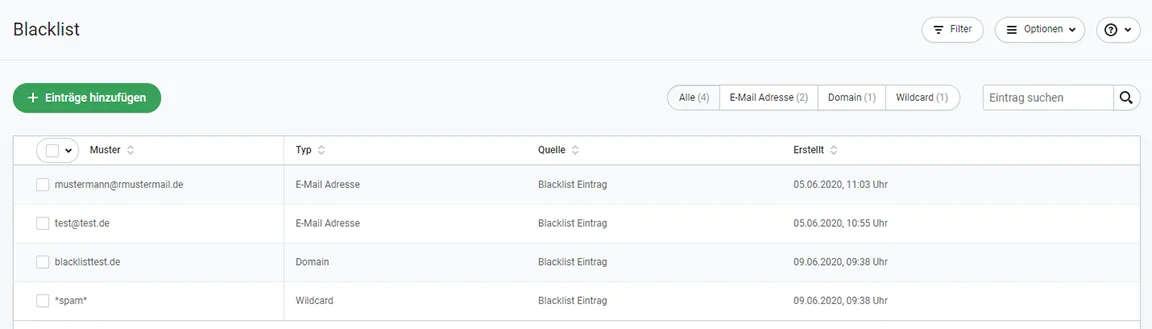
Newsletter subscribers can also be blacklisted at the sender’s request. If you use a specialist newsletter tool such as rapidmail, you can create a blacklist for selected contacts and add more recipients as required.
You can collect email addresses or domains on your blacklist that you definitely do not want to contact with newsletters in the future. This gives you a clear way to manage contacts. The blacklist works across lists: as soon as a recipient is on it, they no longer receive any of your newsletters, even if their email address appears as an active contact when you import a new recipient list. All blacklisted contacts are filtered out automatically before sending and no longer receive your newsletter.
3. When should you put contacts on a newsletter blacklist?
Besides blacklisting, you can of course simply unsubscribe recipients from the newsletter in the conventional way. But why and when should you also blacklist them?
Blacklisting contact email addresses or domains is safer and more reliable if, as a sender, you want, and are legally required, to ensure that no recipient is contacted again against their wishes. Especially if you work with several recipient lists or regularly create new ones, blacklist entries prevent unsubscribed newsletter recipients being contacted “accidentally” because their email address remains active on another list. This not only keeps you legally safe and ensures a GDPR-compliant newsletter unsubscribe, but also ensures that only recipients who want the newsletter, are interested in its content and therefore open and read it will receive it. Regularly cleaning your recipient list and blacklisting the relevant email addresses also increases your campaign open rate in the long term, as well as recipient interaction.
💡 rapidtip
A higher click rate for embedded links and call-to-action buttons signals to spam filters that you send relevant content, strengthening your reputation as a legitimate newsletter sender.
It makes sense to blacklist a contact in the following cases:
- A contact should be excluded from delivery from the outset: Why exclude somebody immediately after they actively subscribed? In some cases, this makes sense when creating a new recipient list in your newsletter system. You can exclude certain recipients or domains from receiving the newsletter before the first send. For example, you can filter out competitors’ email addresses if you want to prevent them from copying your content or using it as inspiration for their own projects.
- Subscribers unsubscribe from the newsletter: When recipients use the campaign’s unsubscribe link, they are actually unsubscribing only from that one recipient list A. If you send newsletters to other lists B and C, where they remain active, for example on different topics or from different brands, those contacts would continue to receive them despite unsubscribing from list A. If you did not tell subscribers when they signed up that they were joining several lists, it is better to blacklist their address. This prevents you from continuing to contact them against their wishes after they unsubscribe from one list. An automatic, cross-list blacklisting feature is also available when someone unsubscribes from a recipient list. If recipients know that they are unsubscribing only from your “email marketing” newsletter, for example, but not your “social media marketing” newsletter, you should not blacklist them.
- A contact complains about receiving spam from your company: Recipients sometimes forget that they previously chose to subscribe. Later, they may think they are receiving unsolicited promotional email and complain to the sender, for example by email. In this case, blacklisting the recipient address is the simplest solution. Then confirm in writing to the former subscriber that you have removed them from the list.
- Recipients mark your newsletter as spam: A similar case occurs when analyzing your newsletter and finding that recipients marked your campaign as spam. This happens more often than you might think, even though the classification is generally unjustified. Many recipients apparently prefer to mark emails as spam instead of clicking the unsubscribe link.
💡 rapidtip: view newsletter spam reports
In rapidmail statistics, under “Recipient activity”, select “Unwanted” to display all contacts who marked your newsletter as spam after it was sent. The recipient list to which you sent the email is then updated automatically according to recipient responses. Every contact is assigned a status, in this case “Unwanted” for all subscribers who classified your sent newsletter as spam. All recipients with this status are treated like unsubscribed subscribers for further sends to that list and will no longer receive your newsletter.

You should also add recipients with “Unwanted” status to the blacklist to avoid contacting them again inadvertently. This prevents further spam reports for your newsletter and the resulting risk to your good sending reputation.
The rapidmail newsletter
Tips, ideas and news about email marketing, straight to your inbox.
4. How can I blacklist recipients with rapidmail?
rapidmail lets you blacklist recipients in several ways as a newsletter sender. This simply gives you several options for using the blacklisting feature. Depending on how you work with the rapidmail tool, one of the following methods will probably suit you best.
Manual blacklist entry
You can manually add individual email addresses or domains to your blacklist, for example if a subscriber tells you by email that they do not want to receive any more newsletters from your company. This guarantees that they will receive no further newsletters.
For example, you can blacklist email addresses such as example@company-xyz.com or the entire domain, @firma-xyz.de. You can also blacklist “wildcards”, meaning particular terms such as *spam*. Our video tutorial on blacklist management shows you exactly what to do.
When creating a new recipient list
When you create a new recipient list with rapidmail, you can set it to automatically blacklist all recipient email addresses that unsubscribe through the newsletter’s unsubscribe link. This means contacts do not first have to write to you if the unsubscribe link or another method failed and they no longer want newsletters.
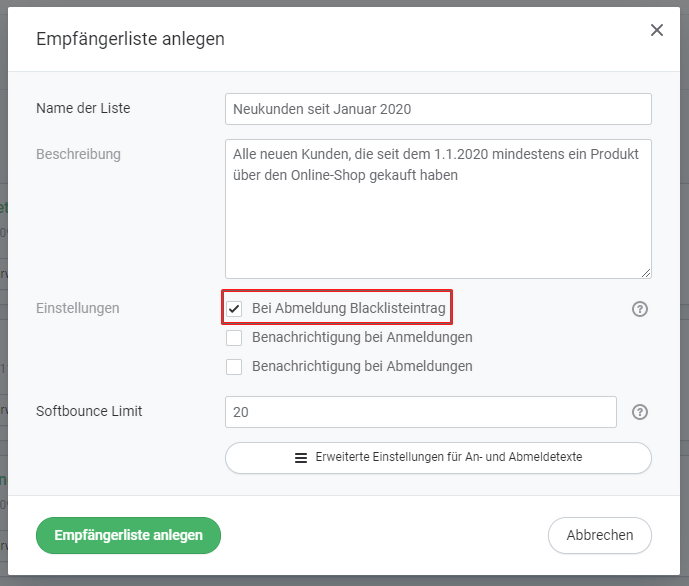
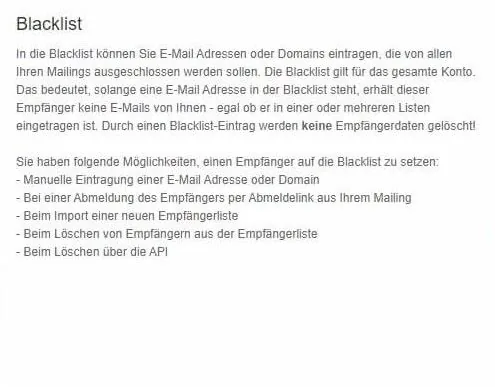
You can also select later in the settings of every recipient list that all future unsubscribes from that list should be added to your blacklist automatically.
Blacklisting contacts in a recipient list
You can also select email addresses within your recipient lists and blacklist them by choosing “Exclude from future campaigns (blacklist)”. If, for example, you know that a recipient no longer wants emails without their having told you directly by phone or email, you can do this within the recipient list. It is simply another route to the same outcome as manually entering the address or domain in the “Blacklist” tab.
By the way: If you have linked your system to rapidmail through our API, you can use it to place email addresses on the blacklist too.
When deleting recipients from a recipient list in a GDPR-compliant manner
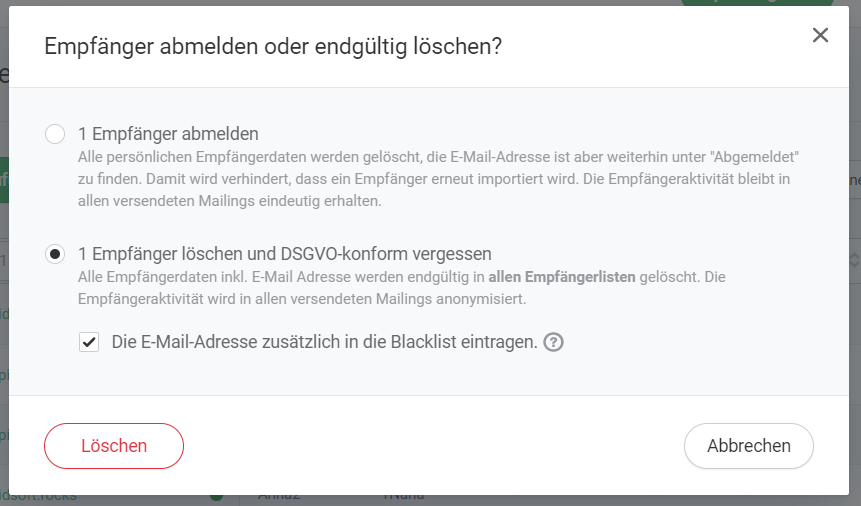
When you unsubscribe an individual within a recipient list by clicking the envelope with a minus sign beside the recipient address, the pop-up window lets you choose whether to unsubscribe them from the list or delete them from every list in a GDPR-compliant manner. If you choose GDPR-compliant deletion, you can simultaneously add their email address to your blacklist:
5. Can blacklist entries be reversed?
Recipients sometimes unsubscribe and later regret it. The newsletter sender will then often receive an email asking for the recipient address to be added to the mailing list again. In such a case, you can of course simply remove the relevant email address from your blacklist.
If you only want to exclude particular recipients from a single newsletter send, you can also place them on the blacklist temporarily. They remain listed as active recipients, but their blacklist entry filters them out before sending, so they do not receive the newsletter. Once you have sent the newsletter to the restricted group, you can remove the blacklisted subscribers. The filter will no longer apply to the next send because the addresses are no longer blacklisted, and your newsletter will be sent to every active recipient as usual.