Newsletter sign-up forms: improved features and endless design options


With our brand-new form editor, you can create a professional sign-up form for your newsletter intuitively and in just a few steps, as well as customize double opt-in confirmation emails and unsubscribe pages. No more old-fashioned, boring standard forms that are anything but inviting! From now on, you can design sign-up forms that have flair, match your brand or company and make people want to subscribe to your newsletter!
1. A dedicated area in your account for managing forms
What has changed about the forms compared with before? In short: everything! In a good way, of course. We spent a long time refining the online forms to make it as easy as possible for you as a sender to add a professional newsletter sign-up form to your website and manage newsletter subscriptions and unsubscribes.
And because appearances matter, we also wanted to make newsletter sign-up more visually appealing to prospective subscribers, so that more website visitors subscribe to your newsletter and your recipient list grows all by itself!
Without wanting to pat ourselves on the back too much, we are rather proud of the result, which really is something to behold: completely new, modern forms with lots of improved features and endless design options!
There is now a dedicated “Online forms” area in your account for the new sign-up forms. This is where you will find the new editor for your newsletter forms! Whether you are working on sign-up forms, success messages, confirmation emails and pages, recipient profiles, or unsubscribe emails and pages, you can design everything exactly as you like and according to your needs.
But don’t worry: even if you do not have the resources to spend a lot of time on your newsletter sign-up form, we have you covered. You can simply use our ready-to-use sign-up form, which you can embed in your website without making any further settings.
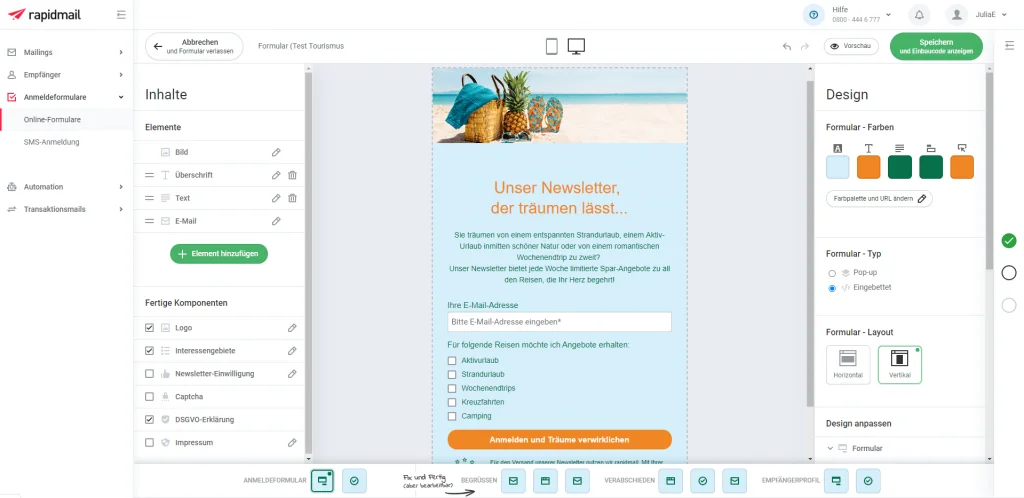
Once you have created your form for a recipient list (one form per recipient list), you are taken straight to the new form editor. Here, you can design and edit the content of all forms, emails and pages using a range of elements and ready-made components, and customize the design however you like.
2. 1-click design to apply your website colors and logo
Our new newsletter forms are not only centralized and therefore easier to manage, they also look stunning! One reason is that, as if by magic, they automatically adapt to your website design thanks to the exclusive rapidmail 1-click design!
How does it work? Once you have created the form for the relevant recipient list, we can suggest all the colors for your form and follow-up pages that perfectly match your website design. We also find your logo for you and have it ready to use. All you need to do is enter your website URL and click “Continue”, and we will take care of the rest!
You can then simply drag and drop the colors onto the form elements to color them accordingly. Of course, you can still change the colors in the editor at any time later on if, for example, you would prefer your call-to-action button to be red rather than green.
Exclusive rapidmail 1-click design: we apply your website colors and logo with one click!
3. Ready to use with pre-built form components and text
Of course, we have also considered newsletter senders who are less keen to experiment: the form editor provides a ready-to-use sign-up form including follow-up pages such as the double opt-in email and unsubscribe page, with all the key settings, fields and text. You can embed it directly in your website without making any further settings. The only thing you should do is add your details (company name, address, contact address, etc.) to the legal notice in the “Unsubscribe confirmation page” step, or remove it entirely.
If, on the other hand, individuality is important to you for your newsletter sign-up, an endless range of form design options awaits you:
Various elements and pre-built components
You can individually edit and customize every page in the sequence (sign-up form, success message, double opt-in email, subscription confirmation, welcome page, unsubscribe page and email, and recipient profile).
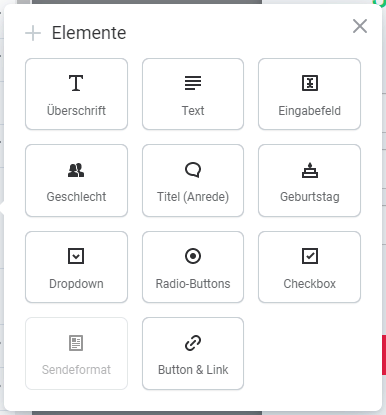
You can add individual building blocks such as the heading, text elements, checkboxes or input fields for personal data to your form and place them anywhere you like. You can also label the various elements as you wish, define error messages and, for example, choose whether prospective subscribers must complete certain fields to subscribe to the newsletter. Bear in mind that, according to the legal principle of data minimization, newsletter sign-up should also be possible when a prospective subscriber provides only their email address.
For follow-up pages such as the successful subscription or unsubscribe message, you can also specify an alternative link if you would prefer to direct contacts to your own page.
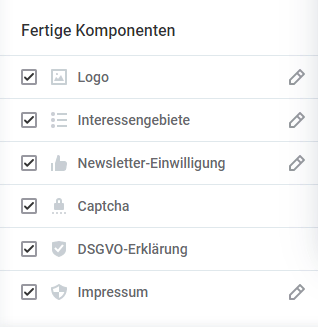
As well as the individual elements, we have prepared pre-built components that you can select or deselect as needed. For the sign-up form, these include your logo, areas of interest for signing up to different newsletter topics, newsletter consent, a CAPTCHA, a GDPR statement and your legal notice. Here too, you can customize and relabel the components as needed.
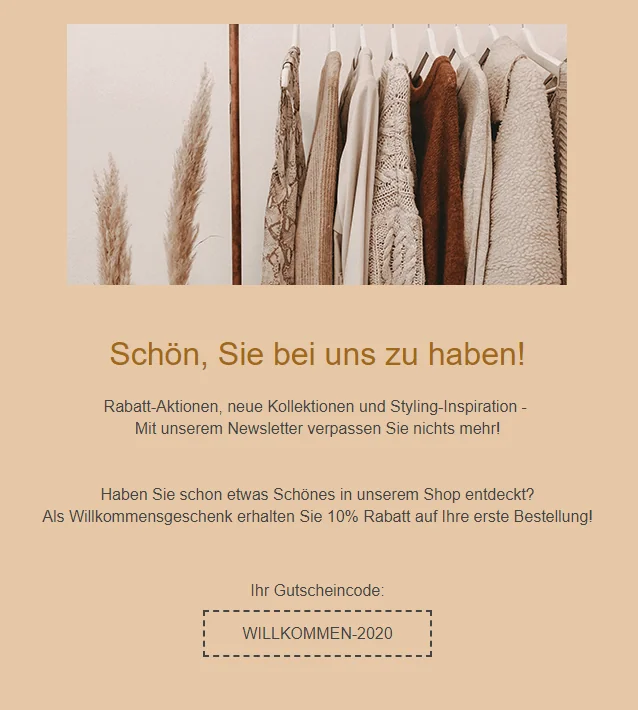
To give your subscribers a proper welcome and thank them for signing up, you can include voucher codes on the welcome page after successful sign-up and in the first welcome email. If you run an online shop, you could use a discount code for a first order or free delivery on a first purchase to encourage your contacts. Show them that you are delighted to have them!
The rapidmail newsletter
Tips, ideas and news about email marketing, straight to your inbox.
4. A wide range of design options
It is not just the form content where you can let your creativity run free! The design also offers countless possibilities: colors, form types, layouts, display times, spacing, font sizes, fonts and alignments … A true creative playground for newsletter senders!
You can use the following options to design your forms just the way you like them:
- Form colors or color palette: background, heading, text, buttons and form fields. You can select any color for every element. The colors we found on your website are also shown as presets. By copying the displayed color code, you can give two elements exactly the same color!
- Form type: Until now, you could only embed your rapidmail sign-up forms in your website. Pop-up windows for newsletter sign-up are now possible too! Compared with an embedded sign-up form (for example, in the website footer), the pop-up version has the advantage that website visitors cannot “overlook” the option to subscribe to a newsletter: users must actively decide against signing up by closing the window. Experience shows that pop-up newsletter forms therefore lead to more sign-ups!
- Form layout: Whether as a banner, in the sidebar or as a modal; horizontally or vertically; with an image on the left, right, top or bottom, or no image at all: our form editor caters to every need! If you display your sign-up form as a pop-up, the display conditions also let you decide when to draw website visitors’ attention to your newsletter: after 5 or 20 seconds, when they leave the page or based on specific scrolling behavior.
- Customize design: This area lets you put the finishing touches to your sign-up form. Try different fonts, font sizes, spacing and alignments to see what looks best in your form! Here, you can also add a border to the call-to-action button, adjust its corner rounding and set its alignment. You can also enable or disable and edit error messages here. For pop-up forms, you can also set a color and the degree of transparency for the overlay, the “layer of color” between the website and the pop-up window.
As you refine the design of your sign-up form, all settings are automatically applied to the subsequent pages in the sequence. You will not need to make any further design changes to them unless you want to select different text or background colors for the follow-up pages and messages.
If you want to give your website visitors even more encouragement to subscribe to your newsletter, you can completely redesign our ready-to-use forms so that they are perfectly tailored to your company or brand. When users visit your website, your carefully designed newsletter sign-up form is sure to catch their attention and generate lots of new newsletter subscriptions!
Create compelling sign-up forms
5. GDPR-compliant newsletter subscription and unsubscribe process
Don’t worry, our new forms will of course continue to guarantee a GDPR-compliant newsletter subscription and unsubscribe process!
When you create a new form, a GDPR statement is automatically integrated into it. All you need to do is add links to the terms and conditions and privacy policy on your website. You can also hide this statement again with a single click. To stay on the safe side legally, however, we recommend that you do not remove the GDPR statement from the form.

The new form editor also gives you the option to design the double opt-in confirmation emails. Before newsletter sign-up is complete, the recipient is sent another email containing a link they must click to give their express consent to receive the newsletter. Although a missing double opt-in process does not in itself constitute a breach of the GDPR, this process ensures that, in the event of a dispute, you as the sender can prove that your recipients expressly consented to receive the newsletter.
6. Personalized recipient welcome
On the follow-up pages for newsletter sign-up, you can give your new contacts an individual welcome in headings and text using personalized forms of address. This helps you establish a personal connection with subscribers right from the start, and the friendly welcome is sure to make a good impression!
7. Selecting specific areas of interest when subscribing to the newsletter
As a sender, the most important thing for you is, of course, that your recipients read the newsletter and then, for example, buy the product it promotes from your online shop, download the ebook, register on your website or take a similar action. To achieve this, newsletter content should hit the mark by being individually tailored to the interests and expectations of the different recipient groups.
But what exactly do your subscribers expect from the newsletter? Our new sign-up forms now make it easy to find out! Using tags, you can now give website visitors the option to sign up for specific newsletter topics or areas of interest. This allows you as the sender to find out what your recipients are really interested in and which newsletter content will appeal to them!
8. Recipient-editable recipient profile
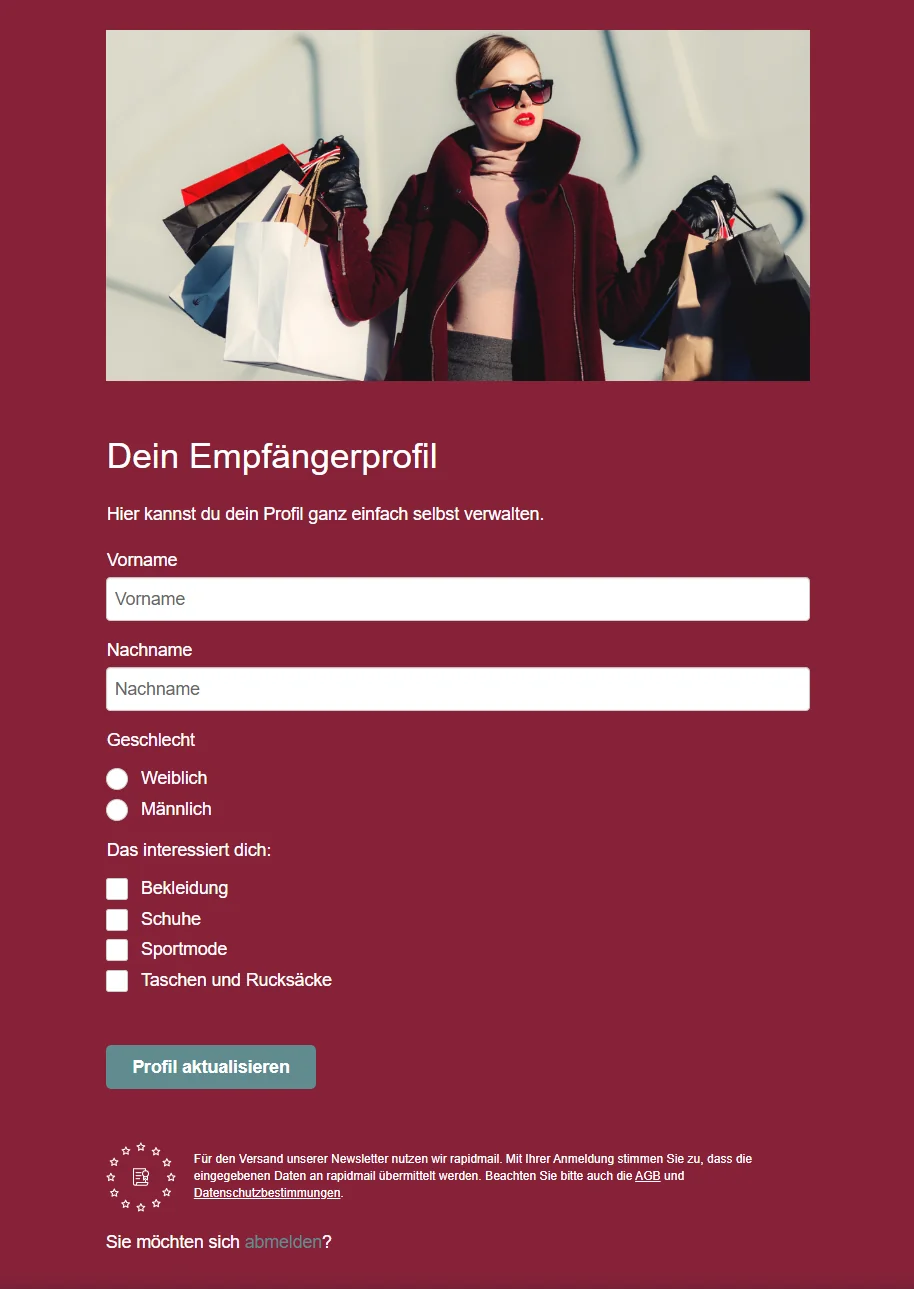
From now on, you can also include a link to the recipient’s profile in the newsletter. There, they can update their data easily and independently, add or change areas of interest and unsubscribe from the newsletter.
If recipients want to adjust their stored data, they can access their recipient profile at any time using the link. The recipient profile has the advantage that recipients no longer need to unsubscribe from the newsletter and sign up again with the correct information to make changes to their stored data.
9. Asking for reasons for unsubscribing
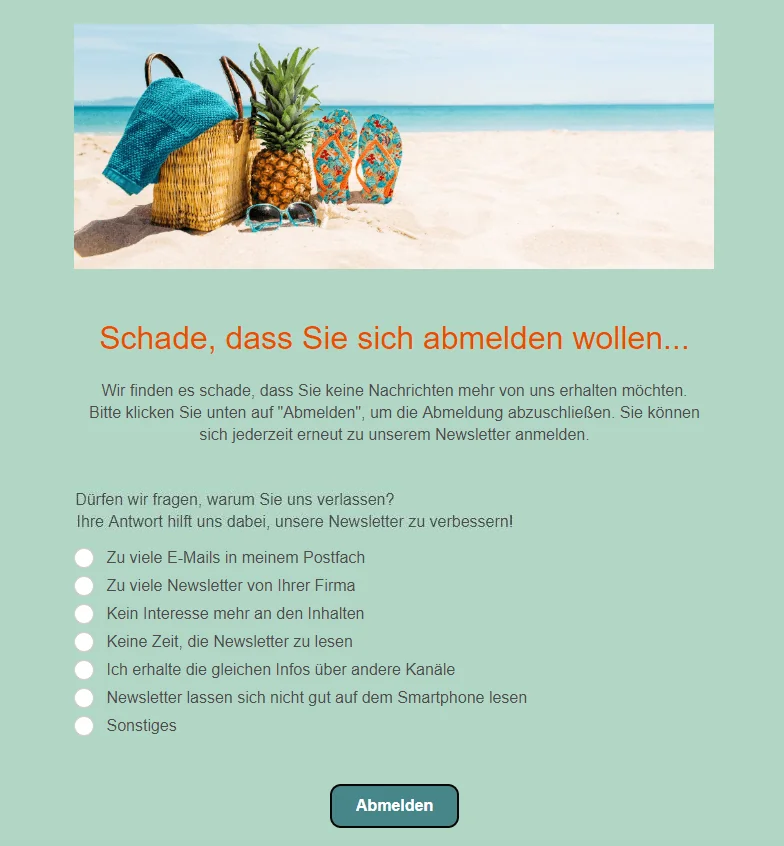
Time to say goodbye? While there is certainly no cause for celebration when subscribers unsubscribe from your newsletter, it is simply part of every newsletter. And now, you can learn valuable things about your newsletter from unsubscribes!
On the unsubscribe page, you can ask subscribers exactly why they are unsubscribing from the newsletter. In the long term, this helps you find out whether you should change anything about your newsletter, such as its content, sending frequency or display on mobile devices.
10. Various embed code options
Once you have finished designing your sign-up form and the associated pages and emails, all it takes is a single click on the Save button: ta-da, the embed code is generated automatically and is ready to use on your website!
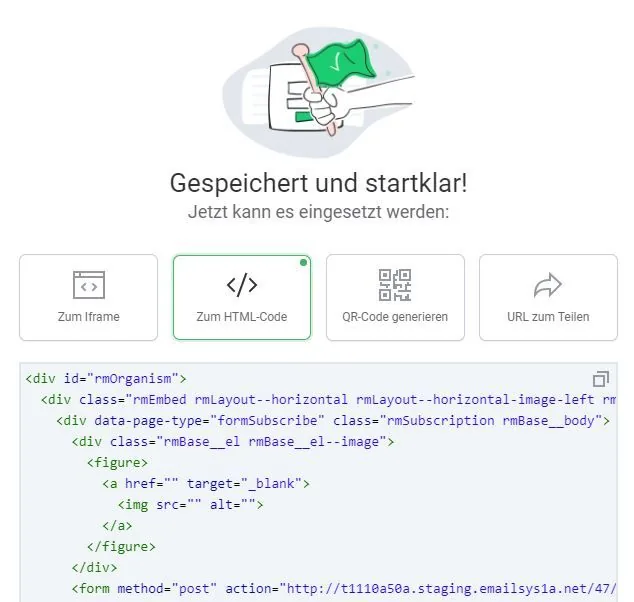
You can choose whether to embed your form as an iframe or using the HTML code on your website. You are also shown a URL that you can copy and save to recommend your newsletter or link to the sign-up form from a website. Or how about a QR code on your printed promotional materials that prospective subscribers can scan with their smartphone to sign up for your newsletter directly? We have prepared that for you too!
We hope you enjoy trying out the new forms and getting creative with them!
Having trouble designing your newsletter form? Take a look at our help article on creating a sign-up form, where you are sure to find the answer to your question!